Files
pi-multifx-pedal-ui/docs/raw/12-saving-presets.md
T

71 lines
10 KiB
Markdown

---
version: "Rev D_v1.3"
language: "en"
---
# Saving Presets
Once you've created a new preset or edited an existing one, you'll want to save it to the USER PRESETS folder and start building your library of tones. You can also save your own custom preset templates, which is a much faster and easier starting point than creating a tone from scratch every time.
## Saving a Preset
If a preset has already been saved to the USER PRESETS folder, and it's been edited since, the top panel **Save** button ![The hardware Save button](https://manuals.line6.com/__attachments/a_001f3140d9a963f27d07100922cae0e36be522adc526635c66da581593a4d789/Button_HardwareSave.png?cb=be4895bbb8c12b1a859a7946d984520f) lights bright white. To quickly save changes to a preset, **press Save twice.** Alternatively, **press FS4 (Quick Save) from the** [**More footswitch mode**](https://manuals.line6.com/en/helix-stadium/live/top-panel-and-footswitches.md#0e1bbb7d-6368-4056-89a7-94f3630b5291)**.** The Save button dims again.
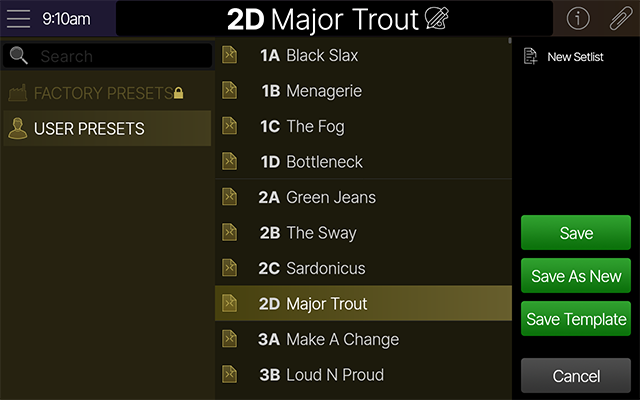
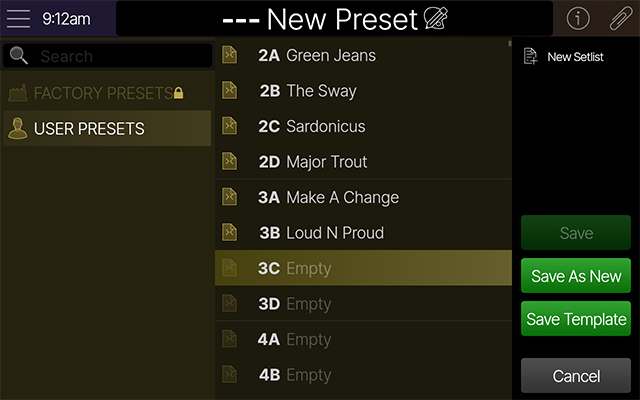
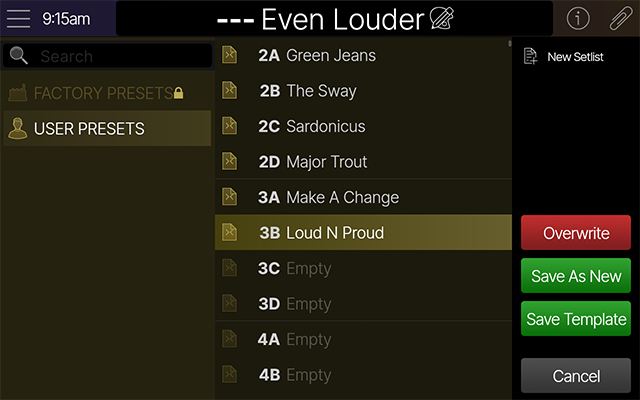
Press **Save** to display the **Save screen**. Different saving options are available depending on the type of preset selected (Factory, User, or New preset) and the specific target location you select for saving the preset (within the User Preset folder, a setlist, in a currently occupied location, etc.). To follow, we cover all the preset saving scenarios.
![Saving an existing preset to the User Presets folder](https://manuals.line6.com/__attachments/a_0d3709e34d5d5fd43cf4bcc844f031d6bfae078e3e20b673332c4c4cff2d6b86/Save_ExistingPreset.png?cb=92943bddde76df89a65f5241b347dc75)
![Item 01](https://manuals.line6.com/__attachments/a_dfd912441145f9e858db58afeaf7ddba7711e1f26f37e1f8349cd3ae44f05674/01.png?cb=ce61b591a14429573632afbeb4c2997c) The Preset Save Screen - Saving an existing preset
![Saving a new preset to an empty User Presets folder location](https://manuals.line6.com/__attachments/a_0d7fe79c7a60ee19783d3b76cfa18963ae59884dca7147c04056b1ee5adfd75b/Save_NewPreset.png?cb=eb8d0e6a27544a7b9b1e3db0dd29fc25)
![Item 2](https://manuals.line6.com/__attachments/a_a70e20b896608fa7d96712f1ff100ab7b3db19dfc7564cf88fa703d0e3573ec9/02.png?cb=53ead26f31014fd489e07cfbde017dc7) The Preset Save Screen - Saving a new preset to an empty location
![Save_OverwritingPreset.png](https://manuals.line6.com/__attachments/a_b5e5a1e535b1a29fe9b8154c70f33aa4ec7efcc4007649c39d0e9534847b84c2/Save_OverwritingPreset.png?cb=5ecb397bce76967428412e6cd96f0c66)
![Item 3](https://manuals.line6.com/__attachments/a_0ee10af5b36bfd98856437c568e6946d750d41c71efd0720e5c4df1541307621/03.png?cb=632cde3c35c9abd3a51e6bbd6f0126be) The Preset Save window - Saving a new preset to a different, occupied User Preset location
### Quick-Saving a Preset
Probably the most common case is that you've loaded a preset you previously saved within the User Presets folder, and you want to save it within its current location to retain your changes. For a Quick-Save, simply press the **Save button** ![The hardware Save button](https://manuals.line6.com/__attachments/a_001f3140d9a963f27d07100922cae0e36be522adc526635c66da581593a4d789/Button_HardwareSave.png?cb=be4895bbb8c12b1a859a7946d984520f) twice quickly. The preset is saved in its original location without leaving the Home View screen. (For an unsaved "New Preset," double-tapping the Save button will open the Preset Save screen, since you'll need to do an initial "Save As New" action for the preset---see the next section.)
**Tip:** Factory presets are "read-only" and cannot be overwritten, but you can select any preset within the Factory Presets folder and double-tap the **Save** **button** ![The hardware Save button](https://manuals.line6.com/__attachments/a_001f3140d9a963f27d07100922cae0e36be522adc526635c66da581593a4d789/Button_HardwareSave.png?cb=be4895bbb8c12b1a859a7946d984520f) to do a Quick "Save As New," and a fully editable copy of the Factory preset is created in the next available location within the User Presets folder.
### Manually Saving a Preset
1. Press the **Save button** ![The hardware Save button](https://manuals.line6.com/__attachments/a_001f3140d9a963f27d07100922cae0e36be522adc526635c66da581593a4d789/Button_HardwareSave.png?cb=be4895bbb8c12b1a859a7946d984520f) . The Preset Save screen appears (see below).
![Saving an existing preset to the User Presets folder](https://manuals.line6.com/__attachments/a_0d3709e34d5d5fd43cf4bcc844f031d6bfae078e3e20b673332c4c4cff2d6b86/Save_ExistingPreset.png?cb=92943bddde76df89a65f5241b347dc75)
2. To rename the preset, **tap the large preset name in the header** ![Preset-Rename.png](https://manuals.line6.com/__attachments/a_9a7e9a9a84d916a648cd90e853293adc5ddc95efcaa6ce36e5045db1b653cb3f/Preset-Rename.png?cb=ef0b323b9a39485de8ac23e6bff02468) **.** A keyboard appears. **Enter the name and tap** ![The Done button](https://manuals.line6.com/__attachments/a_78ddcffa7cc1970b27482c6dcebb03e4265afbe82166cbc9c9b5c42411443205/Button_Done.png?cb=fa66d4e941ffbbcbf1b871f7ea9bff2a) **.**


3. **Choose a setlist and preset location in which to save your preset:**
* If the preset has already been saved, choosing the same location displays ![The Save button](https://manuals.line6.com/__attachments/a_1b4a7100465565a077c630ab09296ccace4f0be5b1e2678325fe552785514db2/Button_Save.png?cb=84a3dab0808d9aafba6d8d899a7376a5) in the sidebar.

* If the preset has not yet been saved, or an empty location is selected, Save is grayed out. In this case, you must choose ![The Save As New button](https://manuals.line6.com/__attachments/a_7f17c3558dcbbd3c612a8e7d461d18d44030793427821b97702a605603ca433e/Button_SaveAsNew.png?cb=32d299034fdbdbe6560aac8618e79c53) instead.
* If the location already contains a different preset, the Save button changes to ![The Save - Overwrite button](https://manuals.line6.com/__attachments/a_5c7dec952f9db2c0c3b87ff74b7493397c1759dc4483667166b27727952ee135/Button_OverwriteRed.png?cb=b970320a97fc3093aac14fff04f50392) .

4. **Tap one of the colored boxes in the sidebar:**
* To simply save any changes made to the current preset, **tap** ![The Save button](https://manuals.line6.com/__attachments/a_1b4a7100465565a077c630ab09296ccace4f0be5b1e2678325fe552785514db2/Button_Save.png?cb=84a3dab0808d9aafba6d8d899a7376a5) **.** This is the same as pressing the **Save button** ![The hardware Save button](https://manuals.line6.com/__attachments/a_001f3140d9a963f27d07100922cae0e36be522adc526635c66da581593a4d789/Button_HardwareSave.png?cb=be4895bbb8c12b1a859a7946d984520f) twice (or pressing FS4 \[Quick Save\] from More footswitch mode).

* To overwrite an existing preset, **select the preset to be overwritten and tap** ![The Save - Overwrite button](https://manuals.line6.com/__attachments/a_5c7dec952f9db2c0c3b87ff74b7493397c1759dc4483667166b27727952ee135/Button_OverwriteRed.png?cb=b970320a97fc3093aac14fff04f50392) **.** A dialog box appears, warning you that the destination preset will be permanently deleted (along with any of its aliases in other setlists). If you're okay with this, **tap Yes, Overwrite.**

* To save your preset as a new, unique preset, **tap** ![The Save As New button](https://manuals.line6.com/__attachments/a_7f17c3558dcbbd3c612a8e7d461d18d44030793427821b97702a605603ca433e/Button_SaveAsNew.png?cb=32d299034fdbdbe6560aac8618e79c53) **.** A keyboard appears. **Enter the name and tap** ![The Done button](https://manuals.line6.com/__attachments/a_78ddcffa7cc1970b27482c6dcebb03e4265afbe82166cbc9c9b5c42411443205/Button_Done.png?cb=fa66d4e941ffbbcbf1b871f7ea9bff2a) **.**

* To save your preset as a template, **tap** ![SaveTemplateButton.png](https://manuals.line6.com/__attachments/a_a55f7de2a074d8c061f0472823a0ba9bebedb2c7d8b8d393feef250b724e2a0b/SaveTemplateButton.png?cb=9b743943d94e189f9d5cd40050aada69) . See **Saving a Template** below.

### Saving a Template
Once you've created a preset that includes blocks, signal flow routing, or other configurations that you're likely to use for future presets, it's helpful to save it as a *template* rather than having to recreate it over and over again.
1. Press the **Save button** ![The hardware Save button](https://manuals.line6.com/__attachments/a_001f3140d9a963f27d07100922cae0e36be522adc526635c66da581593a4d789/Button_HardwareSave.png?cb=be4895bbb8c12b1a859a7946d984520f) . The Preset Save screen appears (see above).
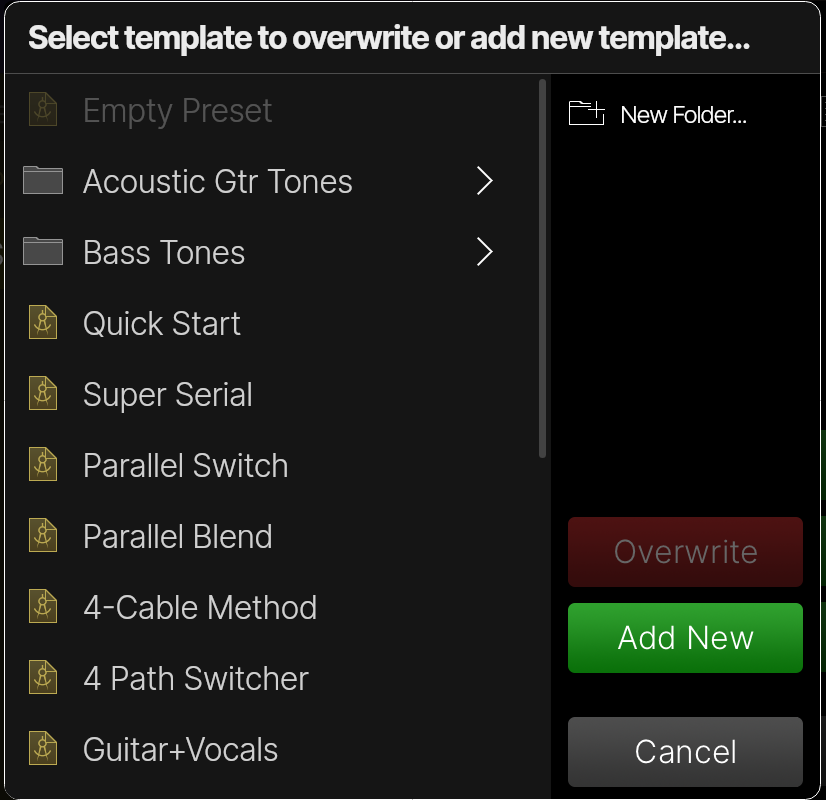
2. In the sidebar, **tap Save Template** ![SaveTemplateButton.png](https://manuals.line6.com/__attachments/a_a55f7de2a074d8c061f0472823a0ba9bebedb2c7d8b8d393feef250b724e2a0b/SaveTemplateButton.png?cb=9b743943d94e189f9d5cd40050aada69) **.** The Save Template window appears (see below).

![SavePresetTemplate.png](https://manuals.line6.com/__attachments/a_0f6935891b5a83dfab0bc858772a23c983b7f9611f58593cde74cdaee7e8b8ec/SavePresetTemplate.png?cb=7d99bfbb816a8c86bd22995d7cdb6c3a)
3. To add a template folder, **tap** ![NewFolderButton.png](https://manuals.line6.com/__attachments/a_fa805840b68adda1866e2ec6686979783eaaf1852c19c8fed7274292a43e4ee0/NewFolderButton.png?cb=bb2aa3353bdf96e8f2565e9bc693845f) **in the sidebar.** A keyboard appears. **Enter the name and tap** ![The Done button](https://manuals.line6.com/__attachments/a_78ddcffa7cc1970b27482c6dcebb03e4265afbe82166cbc9c9b5c42411443205/Button_Done.png?cb=fa66d4e941ffbbcbf1b871f7ea9bff2a) **.**

4. **Tap one of the colored boxes in the sidebar:**
* To save as a new template, **tap** ![The Add New button](https://manuals.line6.com/__attachments/a_b48859d593fadc3fbee032faf4ab64a3ecbb0d32c98cfe801de4855cbd47168d/AddNewButton.png?cb=305e2e55784761bc0418daac14ea88a0) **.** A keyboard appears. **Enter the name and tap** ![The Done button](https://manuals.line6.com/__attachments/a_78ddcffa7cc1970b27482c6dcebb03e4265afbe82166cbc9c9b5c42411443205/Button_Done.png?cb=fa66d4e941ffbbcbf1b871f7ea9bff2a) **.**

* To replace an existing template, **select the template you wish to replace and tap** ![The Save - Overwrite button](https://manuals.line6.com/__attachments/a_d20404a5c5bed1f54ccb066afbb2078e2b03c48a291d9c91263d73ac45d79a00/Button_OverwriteRed.png?cb=b970320a97fc3093aac14fff04f50392) **.** A dialog box appears, warning you that the destination template will be permanently deleted. If you're okay with this, **tap Yes, Overwrite.**