
73 lines
25 KiB
Markdown
73 lines
25 KiB
Markdown
---
|
|
version: "Rev D_v1.3"
|
|
language: "en"
|
|
---
|
|
# Tap/Tuner
|
|
|
|
## Tap Tempo
|
|
|
|
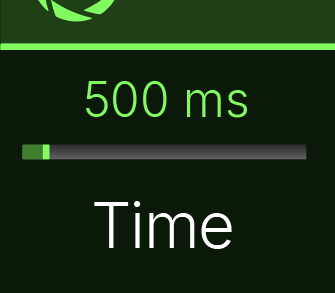
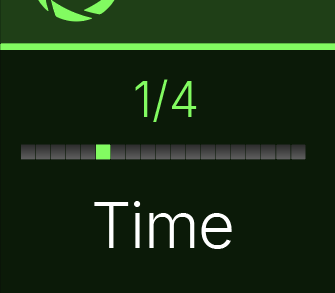
1. **Press the TAP/TUNER switch repeatedly to set the system tempo in BPM (Beats Per Minute).** While tapping, the tempo appears in FS12's scribble strip (Stadium XL  only) or Home \> Play view. Certain Delay and Modulation parameters, such as Time and Speed, can be represented with fixed numeric values (ms or Hz) or note values (1/4 note, dotted 1/8 note, etc.). When set to note values, the parameter follows Tap Tempo, Song Tempo, or incoming MIDI clock.
|
|
|
|
2. **Press a Time, Speed, or Rate parameter knob to toggle between ms or Hz (below left) and note values (below right).**
|
|
|
|
|
|
|
|
**Note:** Helix Stadium may not respond to pressing TAP at tempi lower than 40.00 BPM to ensure that multiple fast tap entries are correctly recognized. You may still manually select a tempo as low as 20.00 BPM from the Tempo Panel (see below).
|
|
**Note:** You can also access Tempo/Click settings from [**Global Settings \> Tempo/Click**](https://manuals.line6.com/en/helix-stadium/live/global-settings.md#globals-tempo).
|
|
|
|
### Tempo Panel
|
|
|
|
**Touch (but don't press) FS12 (TAP/Tuner).** The Tempo/Click panel briefly appears:
|
|

|
|
Click here to show Global Settings \> Tempo/Click settings...
|
|
|
|
| **Parameter** | **Description** |
|
|
|------------------------|---------------------------------------------------------------------------------------------------------------------------------------------------------------------------------------------------------------------------------------------------------------------------------------------------------------------------------------------------------------------------------------------------------------------------------------------------------------------------------------------------------------------------------------------------------------------------------------------------------------------------------------------------------------------------------------------------------------------------------------------------------------------------------------------------------------------------------------------------------------------|
|
|
| **Click** | Turns the click (metronome) on and off. |
|
|
| **Play Click** | Determines when the click (metronome) is heard. * **Song Playbk:** The click (when on) is only heard during song playback. * **Always:** The click (when on) is always heard. |
|
|
| **Click Sound** | Selects the type of Click sound. |
|
|
| **Count In Sound\*** | Selects the type of sound used for the Count In, which is heard before the start of a song and/or marker. ^**\***^**Note:** The Count In function is not currently functional---it is to be implemented in an upcoming firmware update. |
|
|
| **Follow Song Tempo** | Determines if and when time-based blocks (like Delays and Mods) follow the current song's tempo. * **Never:** Time-based blocks completely ignore song tempo. * **Song Playbk:** Time-based blocks only follow the current song tempo while the song is playing. * **Always:** Time-based blocks always follow the current song tempo, even when the song is not playing. **When Tempo is using the Tap Tempo, FS12 TAP TEMPO LED flashes red:** 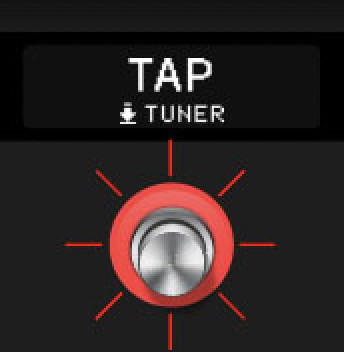 **When using Song tempo, it flashes turquoise:** 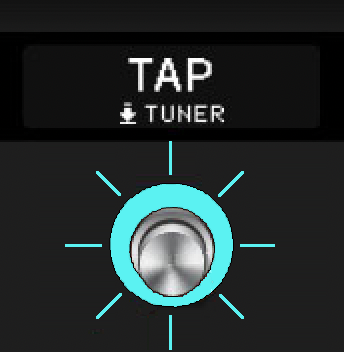 |
|
|
| **Tempo Select** | Determines whether the system tempo is stored and recalled with each snapshot, recalled with each preset, or applied globally across all presets and snapshots. |
|
|
| **BPM \[Whole\]** | Sets the system tempo. Turning Knob 7 (BPM \[Whole\]) resets Knob 8 (BPM \[Hundredths\]) to .00. |
|
|
| **BPM \[Hundredths\]** | Sets the system tempo. Turning Knob 7 (BPM \[Whole\]) resets Knob 8 (BPM \[Hundredths\]) to .00. |
|
|
| **Receive MIDI Clock** | Determines whether Stadium responds to the incoming MIDI Clock received at its MIDI IN port, via USB, or whichever it senses first ("Auto"). If you want Stadium to completely ignore MIDI clock, set this to "Off." The TAP switch LED flashes blue when synced to incoming MIDI Clock. |
|
|
| **Send MIDI Clock** | Determines from which outputs (if any) Helix Stadium transmits MIDI Clock. |
|
|
|
|
*** ** * ** ***
|
|
|
|
## The Tuner
|
|
|
|
Helix Stadium's Tuner accurately tunes notes down to 21.83 Hz (low F) for 5-string basses and offers both Needle and Strobe modes.
|
|
|
|
1. **Press and hold FS12 (TAP/Tuner) until the tuner screen appears**.
|
|
|
|
2. **Tap the desired tuner mode:**
|
|
|
|
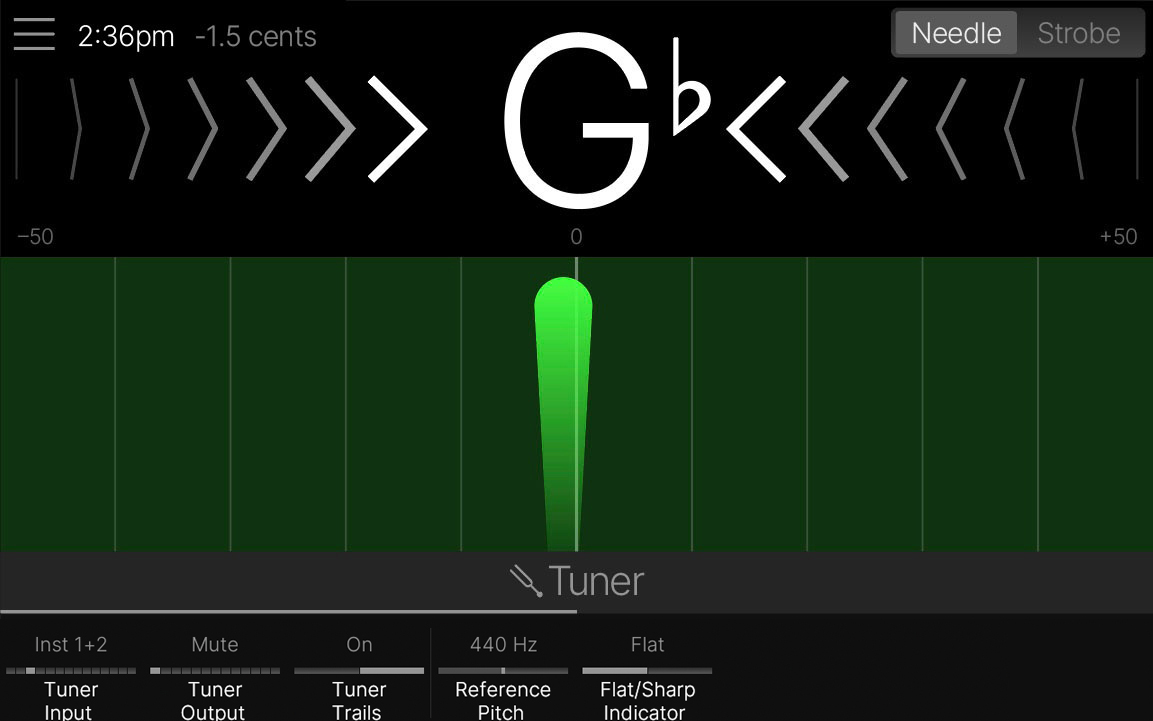
*  **Needle:** A vertical needle moves left (flat) or right (sharp) to indicate the pitch of your instrument. The needle, flat/sharp arrow indicators, and background change colors to show how far the string is from the target pitch. The display offers a range of ±50 cents. When the needle centers and the background lights green, your string is in tune.
|
|
|
|
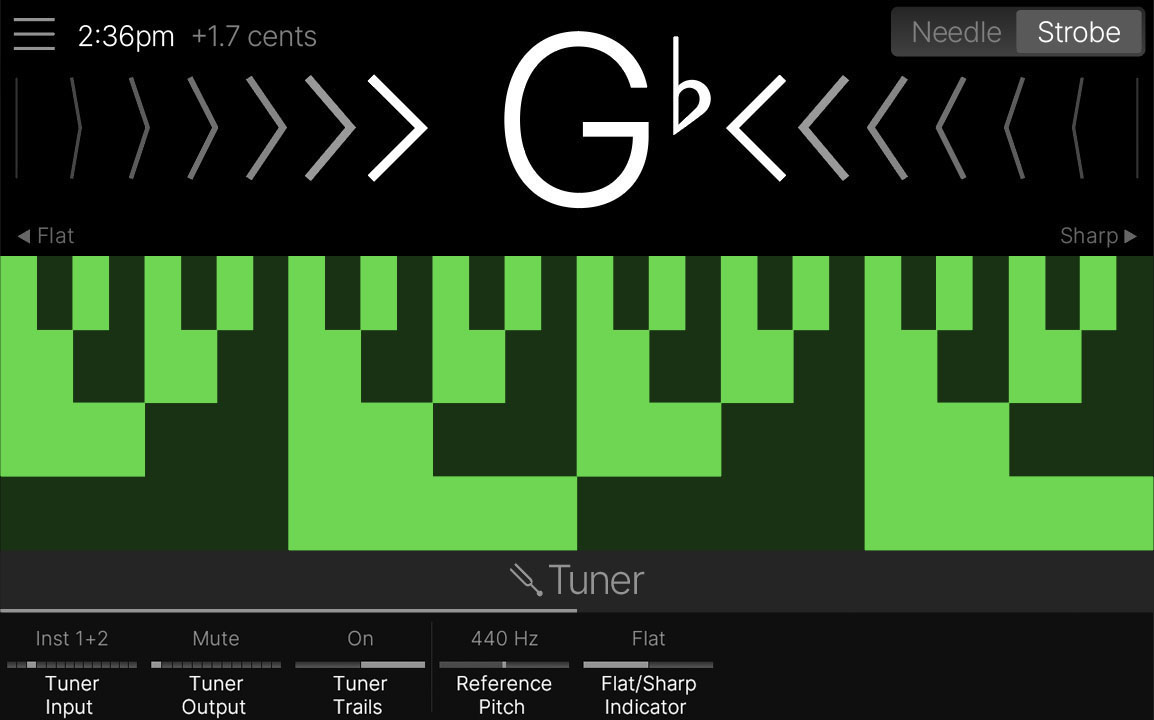
*  **Strobe:** A checkered background moves left (flat) or right (sharp) to indicate the pitch of your source instrument. The strobe background changes colors to indicate how far the string is from the target pitch. When the strobe background stops moving, your string is in tune.
|
|
|
|
* The Cents indicator at the top left of the screen provides a real-time, numerical measurement of your string's pitch relative to the target pitch.
|
|
|
|
|
|
|
|
|
|
3. **Press any switch or the**  **Home button to exit the Tuner.**
|
|
|
|
Click to show Tuner settings...
|
|
|
|
| **Parameter** | **Notes** |
|
|
|--------------------------|--------------------------------------------------------------------------------------------------------------------------------------------------------------------------------------------------------------------------------------------------------------------------------------------------------------------------------------------------------------------------------------------------------------------------------------------------------------------------------------------------------------------------------------------------------------------------------------------------------------------------------------------------------------------------------------------------------------------------------------------------------------------------------------------|
|
|
| **Tuner Input** | Selects which physical input(s) are routed directly to the tuner's input. |
|
|
| **Tuner Output** | Determines the routing and behavior of the Tuner's output while the Tuner screen is open. * **Mute** : The input signal is muted completely (although it respects the **Tuner Trails** setting). * **Processed**: No audible change is heard; the signal is routed through the current preset, with all processing applied. * **Matrix Dry**: The signal is still sent to the preset's output(s) with all processing bypassed. * **\[Specific Output\]**: The signal bypasses the preset and is routed directly to the selected output. For example, if you have a favorite stompbox or rack tuner, connect Helix Stadium's Send 1 to the tuner, and if you set Tuner Output to "Send 1," your instrument will automatically be routed to that tuner every time you hold FS12 (TAP/Tuner). |
|
|
| **Tuner Trails** | Determines whether the natural decay of Delays, Reverbs, FX Loops, and the Aux/Return input continue when the Tuner screen is opened. Does not apply if Tuner Output is set to "Processed." |
|
|
| **Reference Pitch** | Sets the reference pitch of the Tuner, from 425 to 455 Hz. 440 Hz is the standard reference pitch for most uses, so the text turns red for any other value. |
|
|
| **Flat/Sharp Indicator** | Determines whether the note indicator displays flats or sharps. |
|
|
| **String Offsets** | When on, enables any string offsets on knobs 2-7. |
|
|
| **String 6 Offset** | Some guitarists feel that tuning certain strings slightly sharp or flat relative to concert pitch can improve intonation. String offsets calibrate the tuner so that these slightly out-of-tune pitches appear as in tune. String 6 is low E, and String 1 is high E. Tuning offsets are grayed out unless Knob 1 (String Offsets) is turned on. |
|
|
| **String 5 Offset** | Some guitarists feel that tuning certain strings slightly sharp or flat relative to concert pitch can improve intonation. String offsets calibrate the tuner so that these slightly out-of-tune pitches appear as in tune. String 6 is low E, and String 1 is high E. Tuning offsets are grayed out unless Knob 1 (String Offsets) is turned on. |
|
|
| **String 4 Offset** | Some guitarists feel that tuning certain strings slightly sharp or flat relative to concert pitch can improve intonation. String offsets calibrate the tuner so that these slightly out-of-tune pitches appear as in tune. String 6 is low E, and String 1 is high E. Tuning offsets are grayed out unless Knob 1 (String Offsets) is turned on. |
|
|
| **String 3 Offset** | Some guitarists feel that tuning certain strings slightly sharp or flat relative to concert pitch can improve intonation. String offsets calibrate the tuner so that these slightly out-of-tune pitches appear as in tune. String 6 is low E, and String 1 is high E. Tuning offsets are grayed out unless Knob 1 (String Offsets) is turned on. |
|
|
| **String 2 Offset** | Some guitarists feel that tuning certain strings slightly sharp or flat relative to concert pitch can improve intonation. String offsets calibrate the tuner so that these slightly out-of-tune pitches appear as in tune. String 6 is low E, and String 1 is high E. Tuning offsets are grayed out unless Knob 1 (String Offsets) is turned on. |
|
|
| **String 1 Offset** | Some guitarists feel that tuning certain strings slightly sharp or flat relative to concert pitch can improve intonation. String offsets calibrate the tuner so that these slightly out-of-tune pitches appear as in tune. String 6 is low E, and String 1 is high E. Tuning offsets are grayed out unless Knob 1 (String Offsets) is turned on. | |