Files
pi-multifx-pedal-ui/docs/raw/18-performing-songs.md

168 lines
21 KiB
Markdown

---
version: "Rev D_v1.3"
language: "en"
---
# Performing Songs
**Important!** If you haven't yet loaded songs into Helix Stadium, read [**Creating a Song in the Helix Stadium App**](https://manuals.line6.com/en/helix-stadium/live/song-view.md) first!
There are multiple ways to select, play, and navigate songs.
## The Transport
Helix Stadium provides multiple methods of controlling song playback:
* **Transport Footswitch Mode**
* On-screen **Transport Panel**
* **Transport Buttons**
This means song control is available regardless of the current screen or whether your hands are free!
**Tip:** Transport functions can also be controlled remotely via MIDI, allowing you to trigger Transport functions even when not currently displaying the Song view. Please see [**MIDI CCs**](https://manuals.line6.com/en/helix-stadium/live/midi.md#midi-midicc).
### Transport Footswitch Mode
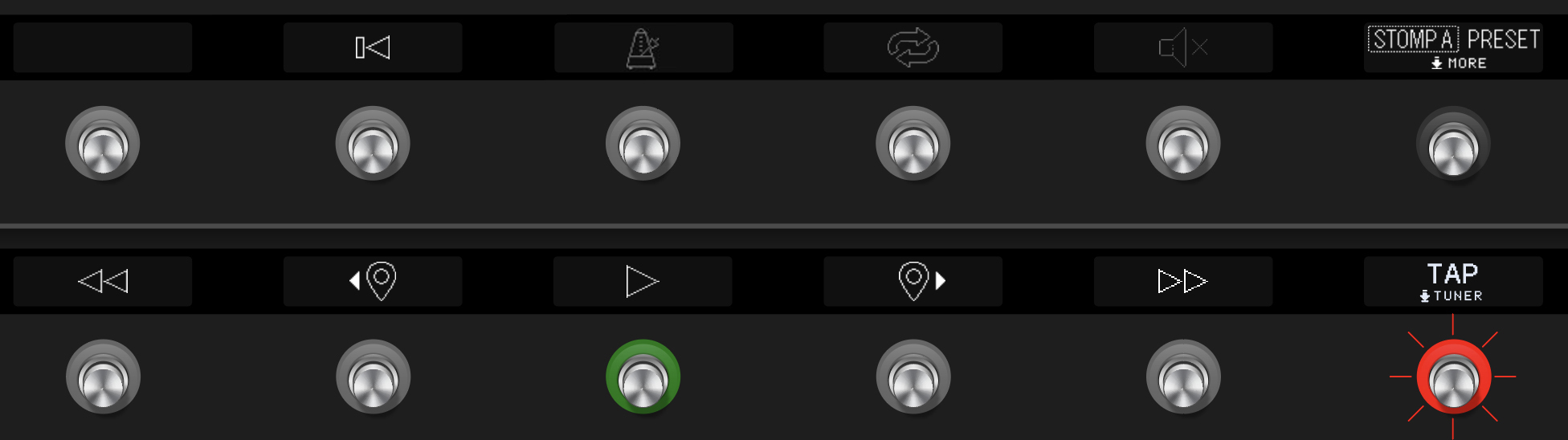
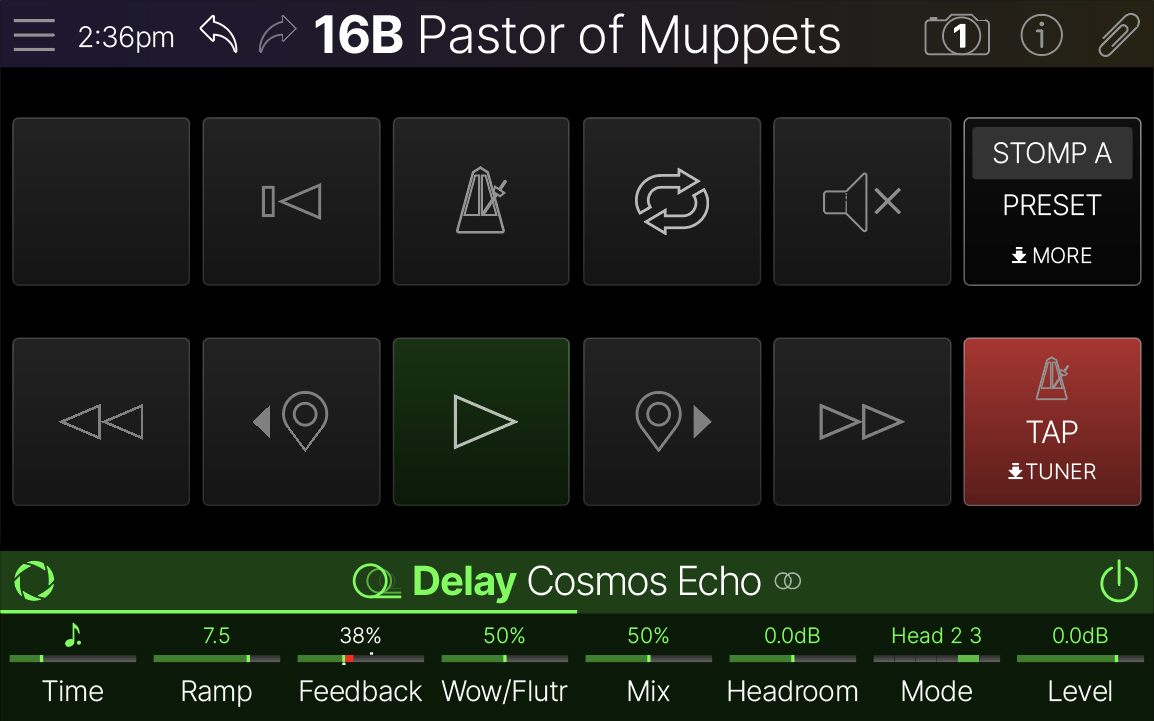
Transport Footswitch Mode offers hands-free control of song playback. To enter **Transport** mode, press and hold FS6 (MODE) to enter More mode and then press the TRANSPORT switch.
**Note:** On Helix Stadium XL, the scribble strips display the function label for each switch. On Helix Stadium, the function label for each switch is displayed on the Home \> Play screen when Transport Footswitch mode is enabled. Please see the [**Footswitch Modes**](https://manuals.line6.com/en/helix-stadium/live/top-panel-and-footswitches.md#0e1bbb7d-6368-4056-89a7-94f3630b5291) section for additional information.
![TransportMode_XL_1_2.jpg](https://manuals.line6.com/__attachments/a_83f3d55b2dcf5522c7ef406853efe3b1ffba2668d267783bcb71fc8bf8291eb2/TransportMode_XL_1_2.jpg?cb=82e703778043ea9ad2587a1991726da1)
Helix Stadium XL's Transport footswitch mode
![Stadium_PlayTransport.png](https://manuals.line6.com/__attachments/a_c014776b2116bf1da1110487e6bf45d2a0869cdeb38e5a66398311ab6310b96b/Stadium_PlayTransport.png?cb=2372b3b68310beb40ed34637453e7aa7)
Helix Stadium's Transport footswitch mode (Home \> Play view)
**Tip:** You can also use the [**Command Center \> Song commands**](https://manuals.line6.com/en/helix-stadium/live/command-center.md#676d1359-ca5a-458b-834f-70c71954367b) to assign individual transport functions to Stomp A and B footswitches and Instant commands.
### Transport Panel
The Transport Panel can be displayed on the main Song screen by tapping on the location controls row, just above the Inspector. Tap the panel's **X** button to close it.
![TransportPanel.png](https://manuals.line6.com/__attachments/a_828eaa5f2967e59f71b56b2f45c6f6804d9a401493f3885aeed6221cb1be3906/TransportPanel.png?cb=5d9ac9caec455c63e0b82299c617fb89)
On-screen Transport Panel
### Hardware Transport Buttons
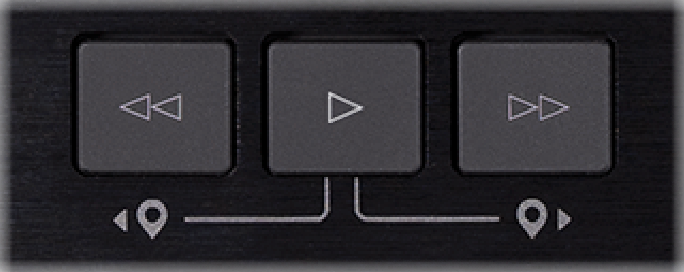
The hardware Transport buttons are dedicated to Song transport functions, regardless of the screen you are currently working in. The middle Play/Pause button is dimly lit when paused, brightly lit when playing, and flashing when a song or marker is cued. Most of the same transport functions as available on the Transport footswitches and panel can be performed using these buttons.
![Hardware Transport Buttons.png](https://manuals.line6.com/__attachments/a_da8605ad97dd2f94ff1a93e20a9cfb4a37244f895783647769cbb04158469f78/Hardware%20Transport%20Buttons.png?cb=a9329505f729df454d9058f14b642277)
Transport buttons
### Transport Functions
The following functions can be performed on the Transport footswitches, on-screen panel buttons, or hardware buttons.
* **Play/Pause** ![TransportPlayButton.png](https://manuals.line6.com/__attachments/a_e7fb239e3f8494981a623242620d7ef74fab3a5a0d422f374dbedffb9c81ce65/TransportPlayButton.png?cb=cf22dbdf7303a61b94d2c32cfbac5e2d) / ![Transport Pause.png](https://manuals.line6.com/__attachments/a_c77bc6a105a73225f4a416e6cc94d53c35ddb9f9027cff3b26f68744bcdd4b0f/Transport%20Pause.png?cb=f7e89756d36ae1b2a62a63d01de6b65e) : Plays a cued song or marker. Toggles song playback and song pause.
* Press **Return To Zero** ![Return to zero (RTZ)](https://manuals.line6.com/__attachments/a_6f8e34efdd16b0e0cac36c51f09400228ed3168cab2cb3278470cdfb1db711f3/Transport%20RTZ%20button.png?cb=620a88df3436b7bb201206b9b408b2dd) (RTZ) to return the playhead to the start of the current song. From the Transport buttons below the Volume knob, press and hold ![TransportPlayButton.png](https://manuals.line6.com/__attachments/a_e7fb239e3f8494981a623242620d7ef74fab3a5a0d422f374dbedffb9c81ce65/TransportPlayButton.png?cb=cf22dbdf7303a61b94d2c32cfbac5e2d) to return to zero.

* Press **Prev Song** ![Queue Prevous Song.png](https://manuals.line6.com/__attachments/a_82a0366b6bd0ef691f85cb3e2cf3bb446038fb6bfd5f9331670637600240e4c9/Queue%20Prevous%20Song.png?cb=efb3bf48c390757f47dc4c53d988180e) or **Next Song** ![Queue Next Song.png](https://manuals.line6.com/__attachments/a_92ea491ff0607ee01bc7c96f1cbaa66550be260217f0893f8e1e04ed50885687/Queue%20Next%20Song.png?cb=a80ac5d5d42fa1cb985f4531e5a54fe7) to cue the previous and next song, respectively. Press and hold ![Queue Prevous Song.png](https://manuals.line6.com/__attachments/a_82a0366b6bd0ef691f85cb3e2cf3bb446038fb6bfd5f9331670637600240e4c9/Queue%20Prevous%20Song.png?cb=efb3bf48c390757f47dc4c53d988180e) or ![Queue Next Song.png](https://manuals.line6.com/__attachments/a_92ea491ff0607ee01bc7c96f1cbaa66550be260217f0893f8e1e04ed50885687/Queue%20Next%20Song.png?cb=a80ac5d5d42fa1cb985f4531e5a54fe7) to rewind or fast-forward the song.

* Press **Prev Marker** ![Previous Marker Button](https://manuals.line6.com/__attachments/a_90cdba674f254863be1b9480e9bfcf7f13453e07a09ade474a389669137b20de/Previous%20Marker%20Button.png?cb=b37cdaef2c59cf1b6a29e739e83b19a7) or **Next Marker** ![Next Marker Button.png](https://manuals.line6.com/__attachments/a_8dc3d11cecb522ee82135c02f1f5746b871dd065d8016228a9437cc228d12dc6/Next%20Marker%20Button.png?cb=8846453c3b06ab28ba8dae38780388e0) to cue the previous/next marker within the current song. From the hardware Transport buttons below the Volume knob, hold ![TransportPlayButton.png](https://manuals.line6.com/__attachments/a_e7fb239e3f8494981a623242620d7ef74fab3a5a0d422f374dbedffb9c81ce65/TransportPlayButton.png?cb=cf22dbdf7303a61b94d2c32cfbac5e2d) and press ![Previous Marker Button](https://manuals.line6.com/__attachments/a_90cdba674f254863be1b9480e9bfcf7f13453e07a09ade474a389669137b20de/Previous%20Marker%20Button.png?cb=b37cdaef2c59cf1b6a29e739e83b19a7) or ![Next Marker Button.png](https://manuals.line6.com/__attachments/a_8dc3d11cecb522ee82135c02f1f5746b871dd065d8016228a9437cc228d12dc6/Next%20Marker%20Button.png?cb=8846453c3b06ab28ba8dae38780388e0) to cue the previous/next marker.

* Press **Cycle** ![Cycle button label - non-active state](https://manuals.line6.com/__attachments/a_d833cfd5856f677f16748f1512be38804c5aa0d16a7fd55f6c5cb2f04fdb0547/Cycle%20Play%20Button.png?cb=9e142387c39925dbd763f844a7c8bdf0) repeatedly for Cycle start, Cycle end, and Cycle clear. If a cycle is in memory, hold **Cycle** ![Cycle button label - non-active state](https://manuals.line6.com/__attachments/a_d833cfd5856f677f16748f1512be38804c5aa0d16a7fd55f6c5cb2f04fdb0547/Cycle%20Play%20Button.png?cb=9e142387c39925dbd763f844a7c8bdf0) to clear the cycle. If a cycle is not in memory, hold **Cycle** ![Cycle button label - non-active state](https://manuals.line6.com/__attachments/a_d833cfd5856f677f16748f1512be38804c5aa0d16a7fd55f6c5cb2f04fdb0547/Cycle%20Play%20Button.png?cb=9e142387c39925dbd763f844a7c8bdf0) to set to the closest adjacent markers (or Song Start/End flag) as the cycle. Also, see [**Repeating a Section of a Song**](https://manuals.line6.com/en/helix-stadium/live/performing-songs.md#Repeating-a-Section-of-a-Song-(Cycle)).
## Selecting Songs
1. Press **Prev Song** ![Queue Prevous Song.png](https://manuals.line6.com/__attachments/a_82a0366b6bd0ef691f85cb3e2cf3bb446038fb6bfd5f9331670637600240e4c9/Queue%20Prevous%20Song.png?cb=efb3bf48c390757f47dc4c53d988180e) or **Next Song** ![Queue Next Song.png](https://manuals.line6.com/__attachments/a_92ea491ff0607ee01bc7c96f1cbaa66550be260217f0893f8e1e04ed50885687/Queue%20Next%20Song.png?cb=a80ac5d5d42fa1cb985f4531e5a54fe7) to select the song you want to play. Alternatively, from the Song screen, turn the Upper Knob. The cue panel appears, displaying the cued song, flashing:
![QueuedSong.png](https://manuals.line6.com/__attachments/a_c191e789568dad0e489c33b9c7931bda079e364bb00efe76ada23693073d1264/QueuedSong.png?cb=dee97d50fb54dea7cd7cfcfa06b0e706)
Cue Panel (song cued)
* FS6 changes to Cancel (for cancelling the song cue), and FS12 changes to ![TransportPlayButton.png](https://manuals.line6.com/__attachments/a_e7fb239e3f8494981a623242620d7ef74fab3a5a0d422f374dbedffb9c81ce65/TransportPlayButton.png?cb=cf22dbdf7303a61b94d2c32cfbac5e2d) :

![FS6-12_CuedState.png](https://manuals.line6.com/__attachments/a_93ada5997f18ea5b5a7d34bc37a8bbde0ac9a29c4ed94ad579f5cd741ccbb801/FS6-12_CuedState.png?cb=9938768dfaee49f77ec32a700cb720e3)
Helix Stadium XL
![HelixStadium_CuedFS.png](https://manuals.line6.com/__attachments/a_50e7cd29f28c8c5c7f4eedd17ea4dbe4a6bbd2e7b5a565c045c7b6d83e188448/HelixStadium_CuedFS.png?cb=806021b8f835e7ddae0127c44e42a61a)
Helix Stadium
2. **Press** ![TransportPlayButton.png](https://manuals.line6.com/__attachments/a_e7fb239e3f8494981a623242620d7ef74fab3a5a0d422f374dbedffb9c81ce65/TransportPlayButton.png?cb=cf22dbdf7303a61b94d2c32cfbac5e2d) **to play the cued song.**
**Note:** You can change the behavior of ![Queue Prevous Song.png](https://manuals.line6.com/__attachments/a_82a0366b6bd0ef691f85cb3e2cf3bb446038fb6bfd5f9331670637600240e4c9/Queue%20Prevous%20Song.png?cb=efb3bf48c390757f47dc4c53d988180e) and ![Queue Next Song.png](https://manuals.line6.com/__attachments/a_92ea491ff0607ee01bc7c96f1cbaa66550be260217f0893f8e1e04ed50885687/Queue%20Next%20Song.png?cb=a80ac5d5d42fa1cb985f4531e5a54fe7) from [**Global Settings \> Songs \>**](https://manuals.line6.com/en/helix-stadium/live/global-settings.md) **Select Song**:

* **Skip:** Instantly jumps to the selected song, like traditional song skip buttons on a CD or MP3 player. (Remember those?)
* **Cue (default):** Selects the song but doesn't play it; press ![TransportPlayButton.png](https://manuals.line6.com/__attachments/a_e7fb239e3f8494981a623242620d7ef74fab3a5a0d422f374dbedffb9c81ce65/TransportPlayButton.png?cb=cf22dbdf7303a61b94d2c32cfbac5e2d) to instantly play the cued song (also, see below).

Additionally, the [**Global Settings \> Songs \>**](https://manuals.line6.com/en/helix-stadium/live/global-settings.md) **Song Play** option lets you choose what happens when you select Play for the Cued song:
* **Play** **(default):**Immediately starts playback of the cued song.
* **Load:** Loads the song, but does not automatically start its playback or load the song's Start Flag-Preset/Snapshot (if enabled).
* **Load+Preset:** Loads the song and its Start Flag-Preset/Snapshot (if enabled), but does not automatically start its playback.
## Selecting Markers
Markers are a type of flag used to jump to---and therefore reorder---sections of your songs in real time. Markers can also trigger preset and snapshot changes on playback---see [**Adding a Flag**](https://manuals.line6.com/en/helix-stadium/live/flags.md#adding-flag) for details.
1. **Press Prev Marker** ![Stadium_PrevMarker.png](https://manuals.line6.com/__attachments/a_062be1cf490553c92729c51ad9dfaa841dd99c5a6bf2a022ba136a309906df04/Stadium_PrevMarker.png?cb=9a96351c6a47dcae8b329873b26683bf) **or Next Marker** ![Stadium_NextMarker.png](https://manuals.line6.com/__attachments/a_3bb2f61cc311eaecad361212bf392e62d5a68a90be406ddfc5fa3aba15769020/Stadium_NextMarker.png?cb=cb57a79936ba261a9542734cf49cc8e6) **to select the marker you want to play. From the Transport buttons below the Volume knob, hold** ![TransportPlayButton.png](https://manuals.line6.com/__attachments/a_e7fb239e3f8494981a623242620d7ef74fab3a5a0d422f374dbedffb9c81ce65/TransportPlayButton.png?cb=cf22dbdf7303a61b94d2c32cfbac5e2d) **and press** ![Stadium_PrevMarker.png](https://manuals.line6.com/__attachments/a_062be1cf490553c92729c51ad9dfaa841dd99c5a6bf2a022ba136a309906df04/Stadium_PrevMarker.png?cb=9a96351c6a47dcae8b329873b26683bf) **or** ![Stadium_NextMarker.png](https://manuals.line6.com/__attachments/a_3bb2f61cc311eaecad361212bf392e62d5a68a90be406ddfc5fa3aba15769020/Stadium_NextMarker.png?cb=cb57a79936ba261a9542734cf49cc8e6) **to select a marker.**The cue panel appears, displaying the cued marker, flashing:

![Cue Panel - Marker.png](https://manuals.line6.com/__attachments/a_58f7736c23df0074e88a24042e1395cb5d909f095320beb5e98fbdfd37ed4d89/Cue%20Panel%20-%20Marker.png?cb=1e08eb913a5f6b45c35ca927753088fa)
Cue panel (marker cued)
* FS6 changes to Cancel (for cancelling the marker cue), and FS12 changes to ![TransportPlayButton.png](https://manuals.line6.com/__attachments/a_e7fb239e3f8494981a623242620d7ef74fab3a5a0d422f374dbedffb9c81ce65/TransportPlayButton.png?cb=cf22dbdf7303a61b94d2c32cfbac5e2d) :

![FS6-12_CuedState.png](https://manuals.line6.com/__attachments/a_93ada5997f18ea5b5a7d34bc37a8bbde0ac9a29c4ed94ad579f5cd741ccbb801/FS6-12_CuedState.png?cb=9938768dfaee49f77ec32a700cb720e3)
Helix Stadium XL
![HelixStadium_CuedFS.png](https://manuals.line6.com/__attachments/a_50e7cd29f28c8c5c7f4eedd17ea4dbe4a6bbd2e7b5a565c045c7b6d83e188448/HelixStadium_CuedFS.png?cb=806021b8f835e7ddae0127c44e42a61a)
Helix Stadium
2. **Press** ![TransportPlayButton.png](https://manuals.line6.com/__attachments/a_e7fb239e3f8494981a623242620d7ef74fab3a5a0d422f374dbedffb9c81ce65/TransportPlayButton.png?cb=cf22dbdf7303a61b94d2c32cfbac5e2d) **to play the song at the marker's location.**
**Note:** You can change the behavior of ![Stadium_PrevMarker.png](https://manuals.line6.com/__attachments/a_062be1cf490553c92729c51ad9dfaa841dd99c5a6bf2a022ba136a309906df04/Stadium_PrevMarker.png?cb=9a96351c6a47dcae8b329873b26683bf) and ![Stadium_NextMarker.png](https://manuals.line6.com/__attachments/a_3bb2f61cc311eaecad361212bf392e62d5a68a90be406ddfc5fa3aba15769020/Stadium_NextMarker.png?cb=cb57a79936ba261a9542734cf49cc8e6) from [**Global Settings \> Songs \>**](https://manuals.line6.com/en/helix-stadium/live/global-settings.md) **Select Marker**:

* **Skip:** Instantly jumps to the selected marker.
* **Cue (default):** Selects the marker but doesn't play it; press ![TransportPlayButton.png](https://manuals.line6.com/__attachments/a_e7fb239e3f8494981a623242620d7ef74fab3a5a0d422f374dbedffb9c81ce65/TransportPlayButton.png?cb=cf22dbdf7303a61b94d2c32cfbac5e2d) to instantly jump to the selected marker.

* **Next Marker:** Causes playback to automatically jump to the cued marker when the *next marker* (or song end) is reached; this lets you rearrange sections of your song on the fly. For example, if you're playing your big solo before the last chorus and you want it to play twice as long, at any time during the solo, press ![Stadium_PrevMarker.png](https://manuals.line6.com/__attachments/a_062be1cf490553c92729c51ad9dfaa841dd99c5a6bf2a022ba136a309906df04/Stadium_PrevMarker.png?cb=9a96351c6a47dcae8b329873b26683bf) once to cue up the Solo section again (provided there's a marker there). At the end of the solo, playback will jump back to the beginning of the solo and play it again. ***IMPORTANT!*** Yamaha Guitar Group and Line 6 are not responsible for upset band members when your solos last far too long.

## Repeating a Section of a Song (Cycle)
1. While the song is playing back, at the point you want the cycle to start, press **Cycle** ![Cycle button label - non-active state](https://manuals.line6.com/__attachments/a_d833cfd5856f677f16748f1512be38804c5aa0d16a7fd55f6c5cb2f04fdb0547/Cycle%20Play%20Button.png?cb=9e142387c39925dbd763f844a7c8bdf0) .
2. At the point you want the cycle to end, press **Cycle** ![Cycle button label - non-active state](https://manuals.line6.com/__attachments/a_d833cfd5856f677f16748f1512be38804c5aa0d16a7fd55f6c5cb2f04fdb0547/Cycle%20Play%20Button.png?cb=9e142387c39925dbd763f844a7c8bdf0) again. This sets the Cycle end location, and that section of the song repeats indefinitely.
3. Press **Cycle** ![Cycle button label - non-active state](https://manuals.line6.com/__attachments/a_d833cfd5856f677f16748f1512be38804c5aa0d16a7fd55f6c5cb2f04fdb0547/Cycle%20Play%20Button.png?cb=9e142387c39925dbd763f844a7c8bdf0) a third time. The song continues as normal.
* Cycle start and end are remembered. Press **Cycle** ![Cycle button label - non-active state](https://manuals.line6.com/__attachments/a_d833cfd5856f677f16748f1512be38804c5aa0d16a7fd55f6c5cb2f04fdb0547/Cycle%20Play%20Button.png?cb=9e142387c39925dbd763f844a7c8bdf0) to toggle the cycle on and off.
4. To clear a Cycle from memory, press and hold **Cycle** ![Cycle button label - non-active state](https://manuals.line6.com/__attachments/a_d833cfd5856f677f16748f1512be38804c5aa0d16a7fd55f6c5cb2f04fdb0547/Cycle%20Play%20Button.png?cb=9e142387c39925dbd763f844a7c8bdf0) .
5. Alternatively, if a cycle does not yet exist in the song, press and hold **Cycle** ![Cycle button label - non-active state](https://manuals.line6.com/__attachments/a_d833cfd5856f677f16748f1512be38804c5aa0d16a7fd55f6c5cb2f04fdb0547/Cycle%20Play%20Button.png?cb=9e142387c39925dbd763f844a7c8bdf0) . Cycle start and end locations are automatically added, using the closest adjacent Marker flags (or Song Start/End flag). This lets you quickly set a section of the song to repeat indefinitely without manually setting Cycle start and end points.
## Setting a Playback Location
Normally, you can just tap on the song's flag field (waveforms) to jump to that location. You can also manually set a playback location:
1. From the main Song screen, tap the location row, just above the Inspector; The Transport panel appears:
![TransportPanel.png](https://manuals.line6.com/__attachments/a_828eaa5f2967e59f71b56b2f45c6f6804d9a401493f3885aeed6221cb1be3906/TransportPanel.png?cb=5d9ac9caec455c63e0b82299c617fb89)
On-screen Transport Panel
2. Turn the knobs below the screen to set the playback location:
* **Knobs 1 and 2:** Time Elapsed
* **Knobs 3, 4, and 5:** Song's location in Bars, Beats, and Ticks
* **Knobs 7 and 8:** Time Remaining
## Chasing the Song
By default, Chase is enabled, keeping the playhead (the right edge of the blue progress bar) centered on the screen. If you swipe to scroll the current view area, or touch-pinch or touch-expand to zoom in/out, Chase is disabled, letting you view another area of the song without it auto-scrolling away. Tap the Chase button to toggle it on and off.
* ![Chase_Enabled.png](https://manuals.line6.com/__attachments/a_eec329a2d7d2e930c66a4e82e68581c088f62b0314f531417f6535932e543baa/Chase_Enabled.png?cb=73ff43888469fa21cce9bdb7414743f8) **Chase Enabled:** The playhead remains centered in the display during playback.
* ![Chase_Disabled.png](https://manuals.line6.com/__attachments/a_68f65552e6ea4eae9cf242b0a85442da2648e3fb7767de4c5e046ba62d90e230/Chase_Disabled.png?cb=1d074eaed34d0eff655d451ba65e92d4) **Chase Disabled:** The playhead moves freely and may leave the current view area when playing or jumping to markers.
* Chase is automatically enabled if you return to the beginning of the song or select a different song.
## Setting Track Levels
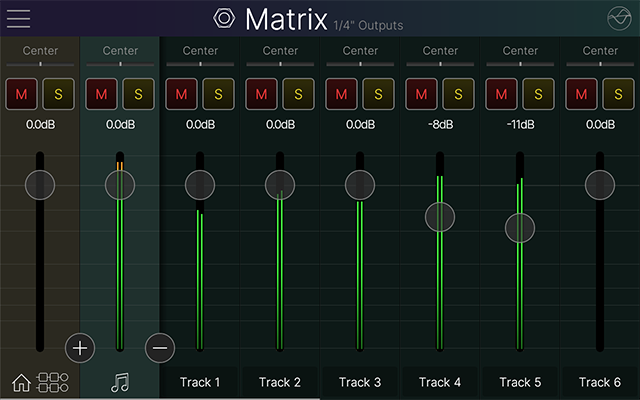
The **Matrix Mixer** allows discrete mixes of the song from the 1/4", XLR, and Phones outputs, including individual level, pan, mute, and solo for all eight audio tracks. See [**Main Volume/Matrix Mixer**](https://manuals.line6.com/en/helix-stadium/live/matrix-mixer.md).
1. **Press 1/4"** ![Quarter Inch Out button](https://manuals.line6.com/__attachments/a_3fbd01c110a13ea629ac75a3ccfa3af1a9b03e2b6d81fbf0418640087cf80418/Button_QtrInchOut.png?cb=9feda74ee7ac3672471d451409cb1ce8) **, XLR** ![XLR Out button](https://manuals.line6.com/__attachments/a_04f00bfa3ff3c84c8721c79da2d530a34c44ca338cf5ecdf3fcc3b422ef52e68/Button_XLROut.png?cb=9d3dbfcfdea4a86c87ccc141b3706631) **, or Phones** ![Headphones Out button](https://manuals.line6.com/__attachments/a_c6e9abad50f8aa0f1cff7f13c5060b07e7c6a4f91fc810532f1b3bd0c8cdf299/Button_Phones.png?cb=6acd729f16d66341809575cab1af7485) **to select which output you want to control.**Turn the large Volume knob to quickly adjust all audio for the selected output.
2. **Use the mixer's Song channel** ![Mixer Song Channel icon](https://manuals.line6.com/__attachments/a_72bb7ffabef26f35896521da174dd3ed11dfd1a1f9feacd5a2cd09a1e8f80216/Mixer%20Song%20Channel%20icon.png?cb=79dbc9e861b186291902f240e493e5d6) **to adjust the song level fed to the selected output.** This lets you balance the song against your preset, or mute song playback---for example, you could mute the song for the 1/4" outs so that it is only fed to the XLR and Phones outputs for your stage setup. If multiple band members are monitoring different Matrix layers---say, the guitarist from the 1/4" outputs and the drummer from the Phones---they can have drastically different monitor mixes of inputs, Home screen paths, and even song tracks. ("Hey, can I get a little less cowbell in the monitors?")
3. **Tap the** ![The expand button](https://manuals.line6.com/__attachments/a_aebd06fdaa2c442b2377b9ff5b080809157cc1746e466b7e0061922e4b5543e2/ExpandButton.png?cb=1e51f007fe81c9298c7082cf94cfd89f) **button to the right of the Song channel** ![Mixer Song Channel icon](https://manuals.line6.com/__attachments/a_72bb7ffabef26f35896521da174dd3ed11dfd1a1f9feacd5a2cd09a1e8f80216/Mixer%20Song%20Channel%20icon.png?cb=79dbc9e861b186291902f240e493e5d6) **to view individual track channels.**

![Song_Expanded.png](https://manuals.line6.com/__attachments/a_0ce842f7ed70f771355703263b3c9e5ac6fe2210bf3e3c02b19c0ce78874d49d/Song_Expanded.png?cb=894c71353849cc272c79b8fe5ce1d155)
Matrix Mixer (Song track channels expanded)