
102 lines
14 KiB
Markdown
102 lines
14 KiB
Markdown
---
|
|
version: "Rev D_v1.3"
|
|
language: "en"
|
|
---
|
|
# Main Volume/Matrix Mixer
|
|
|
|
Please check out the video below for an overview of the Main Volume control and Matrix Mixer. Then, consult the sections on this page for additional details.
|
|
<https://youtu.be/PHGz4Zy-UVI>
|
|
|
|
## Main Volume
|
|
|
|
Helix Stadium's large **Volume knob** controls the level of one output pair at a time (or more than one, if outputs are linked)---1/4", XLR, or Phones.
|
|
|
|
1. **Press the 1/4"**  **, XLR**  **, or Phones**  **output button to select which output you want to control.**
|
|
|
|
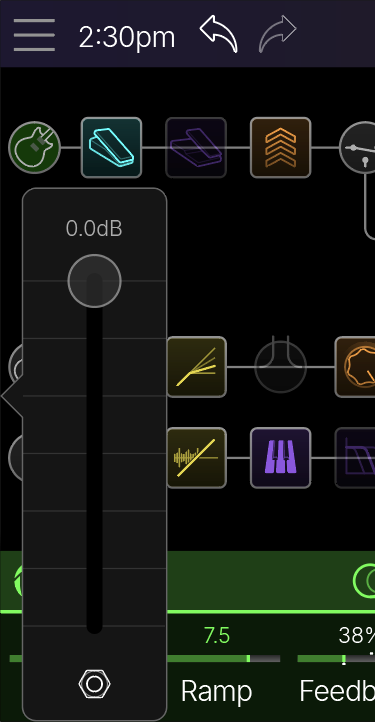
2. **Turn the large Volume knob**  **.** The Volume panel briefly appears (see below).
|
|
|
|
|
|
|
|
Worried that someone (or your guitar cable) might bump the Volume knob mid-show? Stop taping it down! Volume knob control can be quickly disabled.
|
|
|
|
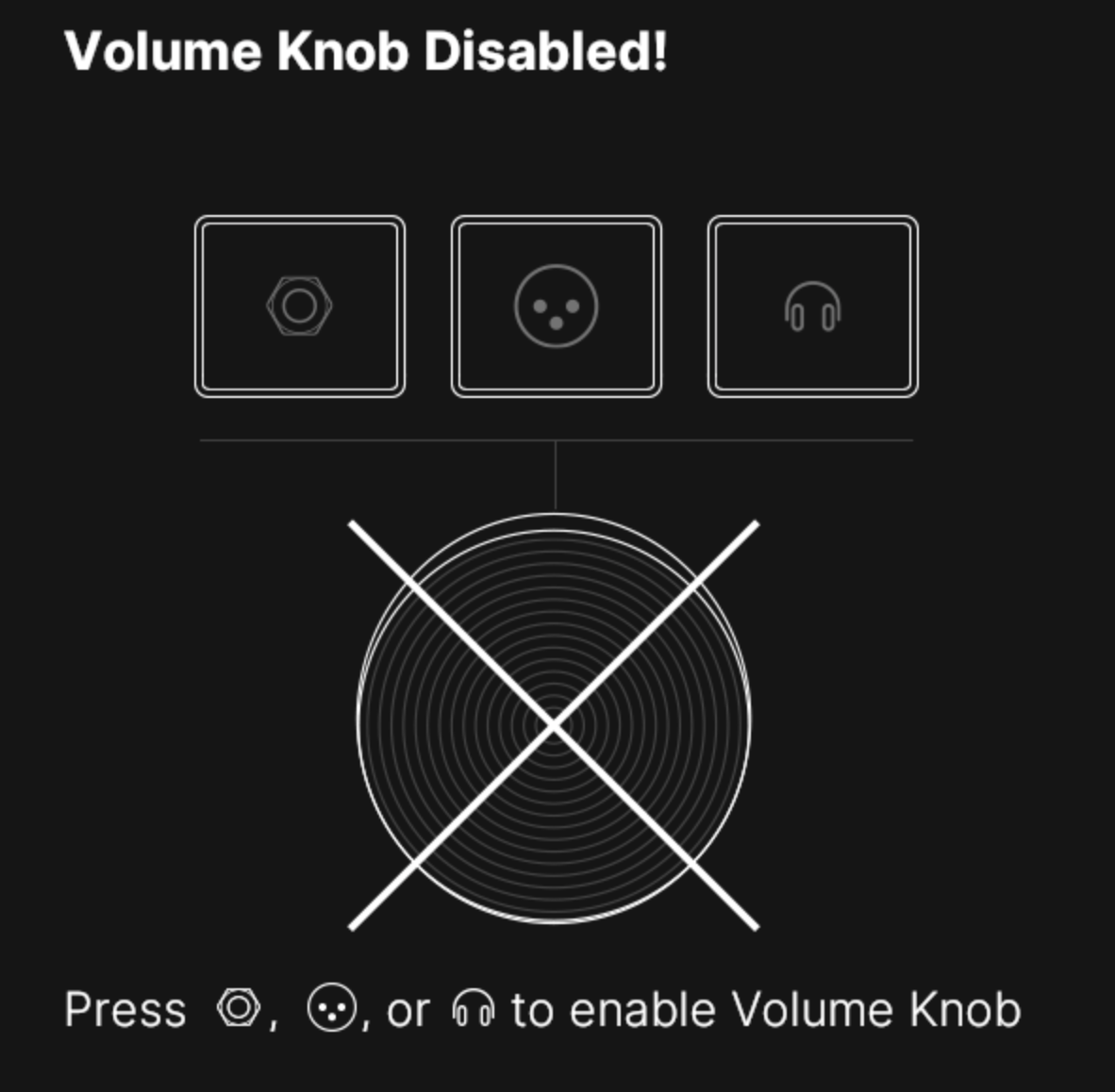
1. **Press and hold the** ***currently lit*** **output button(s) to completely disable Volume knob control.** Turning the Volume knob while it's disabled displays an alert (see below).
|
|
|
|
2. **Press any output button to re-enable the Volume knob.**
|
|
|
|
|
|
|
|
## Matrix Mixer
|
|
|
|
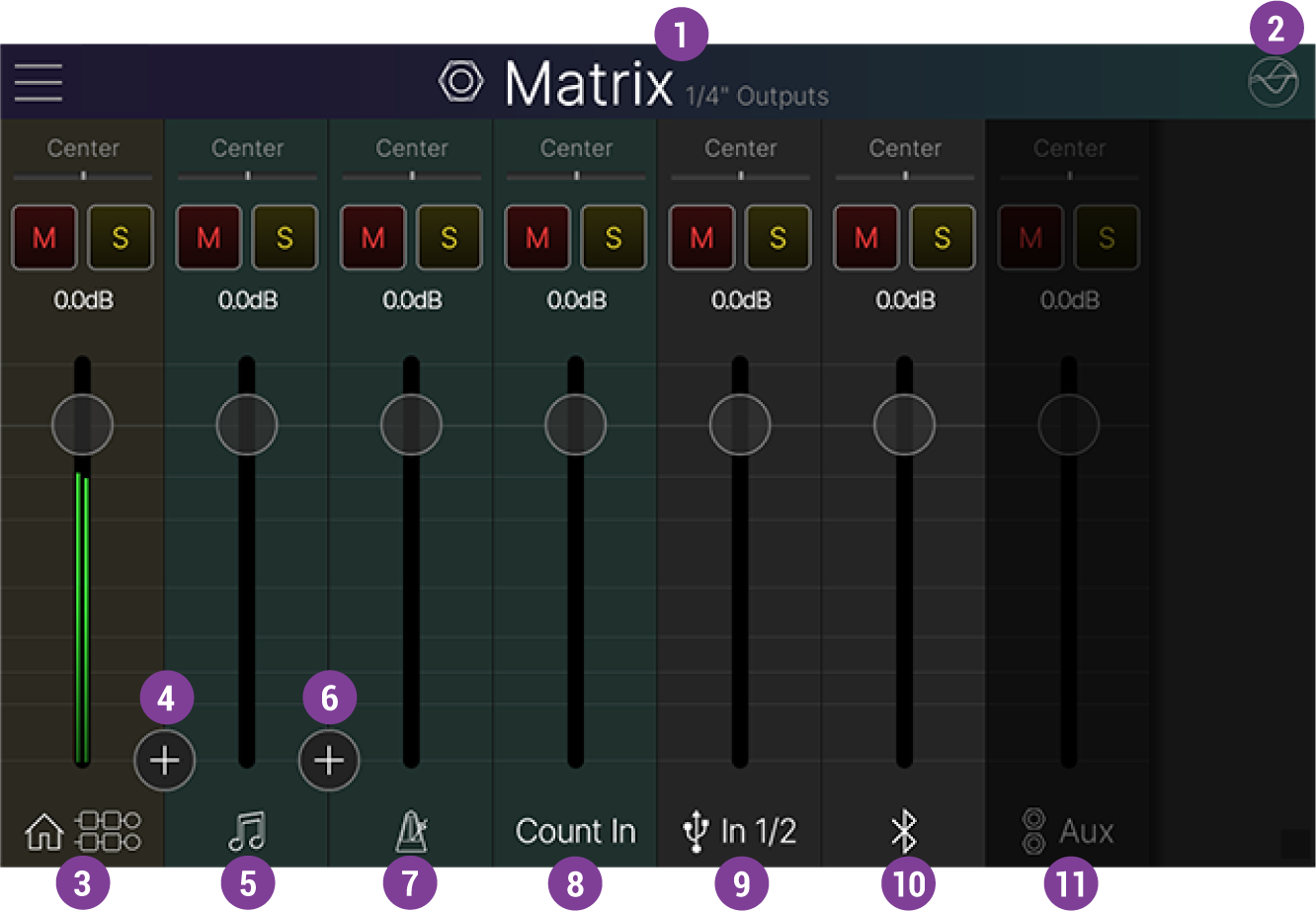
The Matrix Mixer lets you quickly mix the numerous signals going through Helix Stadium. What's more, the 1/4", XLR, and Phones outputs get their own Matrix layer so you can send a completely different monitor mix to, say, the 1/4" outputs feeding your on-stage playback system, the XLR outputs feeding the Front of House console, and the Phones output feeding your In Ear Monitors or drummer. Each Matrix layer provides real-time metering, level, pan, mute and solo control over the 4 stereo paths on the Home \> Edit screen, 8 stereo tracks on the Song screen, Click, Count In, USB In 1/2 (for monitoring your DAW), Bluetooth audio (for jamming along with Apple Music^®^, Spotify^®^, or YouTube™), and Aux In. (Aux In is unavailable unless [**Global Settings \> Ins/Outs \>**](https://manuals.line6.com/en/helix-stadium/live/global-settings.md#6c56362d-db33-4eb0-ac46-2d690ec2d73e)**Return 1/2 Type** is set to **Aux In**.) Each Matrix output also gets its own Global EQ.
|
|
**Note:** All metering in the Matrix Mixer is "Pre-Fader" (i.e., each meter displays the signal level *before* its channel fader's level is applied).
|
|
|
|
Further, you can "link" the Stadium outputs so that any two---or all three---outputs are controlled from the same Matrix Mixer layer and main Volume knob. See [**Linking Outputs**](https://manuals.line6.com/en/helix-stadium/live/matrix-mixer.md#linking-outputs) for details.
|
|
|
|
1. **Press the** ***lit*** **1/4"**  **, XLR**  **, or Phones**  **output button to open that output's Matrix Mixer.**
|
|
|
|
2. To view the Matrix Mixer for a different output, **press that output button.**
|
|
|
|
|
|
|
|
 **Matrix Mixer Layer:** The current Matrix layer is indicated at the top of the screen (1/4" Outputs, XLR Outputs, Phones Output, or multiple outputs when two or more are linked).
|
|
|
|
 **Global EQ Shortcut:** Tap to open the Global EQ for the selected Matrix layer. Each Matrix output (1/4", XLR, and Phones) gets its own Global EQ, regardless of whether any of them are linked. See [**Global EQ**](https://manuals.line6.com/en/helix-stadium/live/global-eq.md) for details.
|
|
**For All Matrix Mixer Channel Strips:**
|
|
|
|
Adjusting the Matrix Mixer's controls determines the mix heard from the selected output (1/4", XLR, Phones, or linked outputs).
|
|
|
|
* Tap and drag a channel strip's vertical**Fader**  , or turn Knob 1\~8 beneath the respective fader to adjust its level. Press the Knob 1\~8 to reset the fader to 0.0 dB. The fader's current setting value is shown in white at the top of each channel.
|
|
|
|
* A multi-color level meter is displayed on each channel for reference.
|
|
|
|
* Tap a channel's **Pan slider**  to open the Pan panel and drag to adjust its Left/Right stereo balance.
|
|
|
|
* Tap the **Mute button**  to mute the channel. Tap again to un-mute the channel.
|
|
|
|
* Tap the **Solo button**  to mute all other non-solo-enabled channels. Tap again to un-solo the channel. (Note that the currently lit Output button flashes when any channels are solo-enabled, serving as an indicator when you're in other screens.)
|
|
|
|
* Tap the Solo buttons of multiple channels to add them to the solo bus.
|
|
|
|
* Tap-hold any enabled Solo button to clear all solos.
|
|
|
|
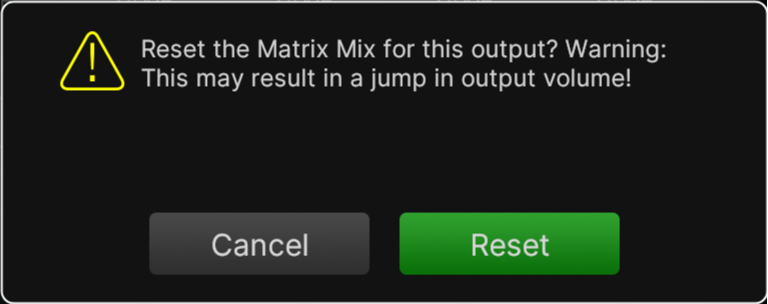
* Tap-hold on the "Matrix" title at the top of the screen to reset all the current Matrix Mixer's controls to their initial defaults (Level to 0.0 dB, Pan to Center, and Mute and Solo to off). The following dialog appears, warning you that things could get loud (since some of your channel levels might currently be set significantly lower than the default 0.0 dB). Tap **Reset**.
|
|
|
|
|
|
|
|
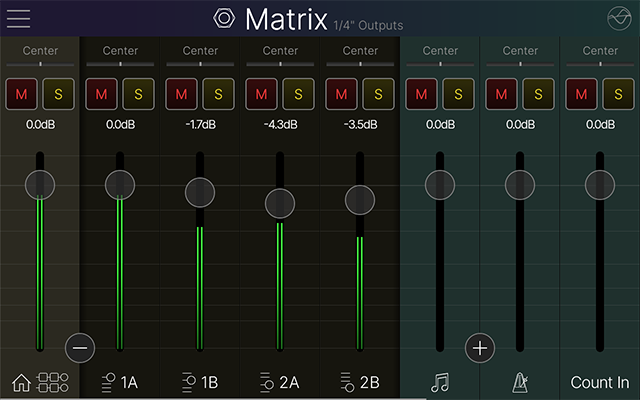
 **Home Channel:** Use this channel's controls to adjust the combined signal of all four Home \> Edit paths.
|
|
|
|
 **Home Paths Show/Hide:** Tap the  button to expand the Home channel to show its four individual path channels (1A, 1B, 2A, and 2B). Use these channels to meter and adjust each path independently. Tap the  button to hide the individual path channels.
|
|
|
|
|
|
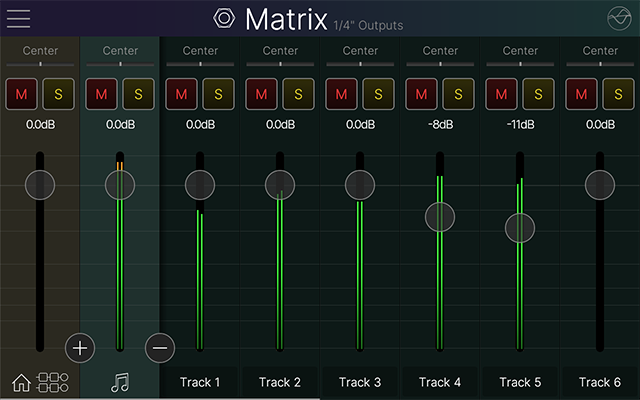
 **Song Channel:** Use to adjust the combined signal of all eight Song tracks.
|
|
|
|
 **Song Tracks Show/Hide:** Tap the  button to expand the Song channel to show its eight stereo track channels. Use these channels to meter and adjust each track independently. Tap the  button to hide the individual track channels.
|
|
|
|
* Swipe the screen left or right to access all channels when the Home Path or Song Track channels are displayed.
|
|
|
|
|
|
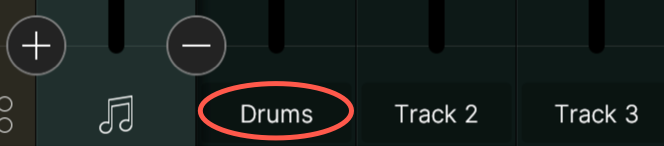
**Tip:** Click on a Song Track channel's label to rename it.
|
|
|
|
|
|
Customized track channel names persist for the current mixer output layer---therefore, it is a good idea to arrange your tracks in the same order for all songs as you create them. See [**Song Settings**](https://manuals.line6.com/en/helix-stadium/live/the-song-screen.md#song-settings).
|
|
|
|
 **Click Channel:** Use to adjust the Metronome's Click signal.
|
|
|
|
 **Count In Channel:** Reserved for future functionality.^\*^
|
|
|
|
 **USB In 1/2 Channel:** Use to adjust the audio USB 1/2 monitor signal (for monitoring your DAW when Helix Stadium is operating as your computer's audio interface).
|
|
|
|
 **Bluetooth Audio Channel:** Use to adjust the playback signal from a paired Bluetooth^®^ audio device, for jamming along with Apple Music, Spotify, YouTube, etc. The Bluetooth Audio channel is grayed out unless a Bluetooth audio device is currently paired. See [**Bluetooth Connectivity**](https://manuals.line6.com/en/helix-stadium/live/wifi-bluetooth-and-ethernet-connectivity.md) for details.
|
|
|
|
 **Aux Channel:** Use to adjust the signal from the rear panel Aux L/R input (Helix Stadium's **Return 1/2** or  Helix Stadium XL's **Return 3/4** ) for receiving a monitor feed from the Front of House console or connecting a drum machine, mixer, etc. The Aux channel is grayed unless the [**Global Settings \> Ins/Outs \>**](https://manuals.line6.com/en/helix-stadium/live/global-settings.md#6c56362d-db33-4eb0-ac46-2d690ec2d73e)**Return Type** is set to **Return 3/4** ; to enable it, set Return Type to **Aux**.
|
|
|
|
### Linking Outputs
|
|
|
|
Man, what a pain to constantly switch back and forth between outputs just to change Volume or tweak a Matrix cue mix! If you'd prefer to keep things simple, you can link any two---or all three---outputs so that they share the same Matrix Mixer layer and Volume knob control.
|
|
|
|
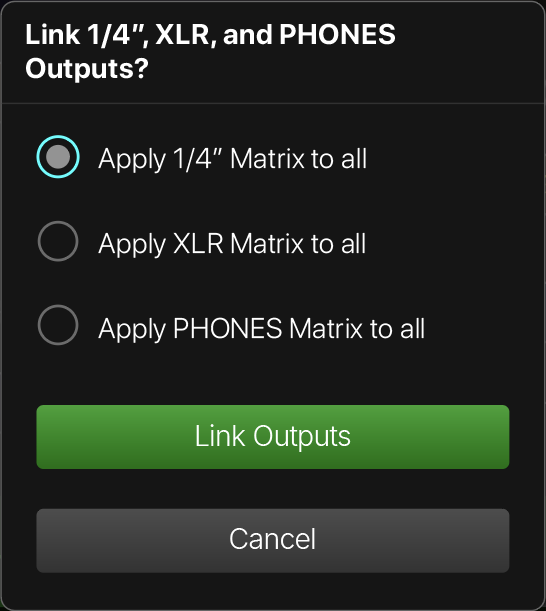
1. **Press and hold two (or all three) output buttons for 2 seconds.** A dialog appears, asking which output's Matrix layer you want as the reference (see below).
|
|
|
|
2. **Choose the desired output reference and then tap Link Outputs.** To unlink outputs, press and hold the linked output buttons again.
|
|
|
|
|
|
**Note:** Global EQ remains independent per output, regardless of whether any outputs are linked. |