
13 KiB
version, language
| version | language |
|---|---|
| Rev D_v1.3 | en |
The Song List
Important! If you haven't yet loaded songs into Helix Stadium, read Creating a Song in the Helix Stadium App first!
From the main Song screen, tap the current song's name at the top of the display to open the Song List screen. The Song List lets you search, load, play, manage, and organize all your songs and playlists. You can also create playlists that reference the song files in your SONG LIBRARY folder, making it easy to manage their playback order and behaviors for your sets, rehearsals, and jams.
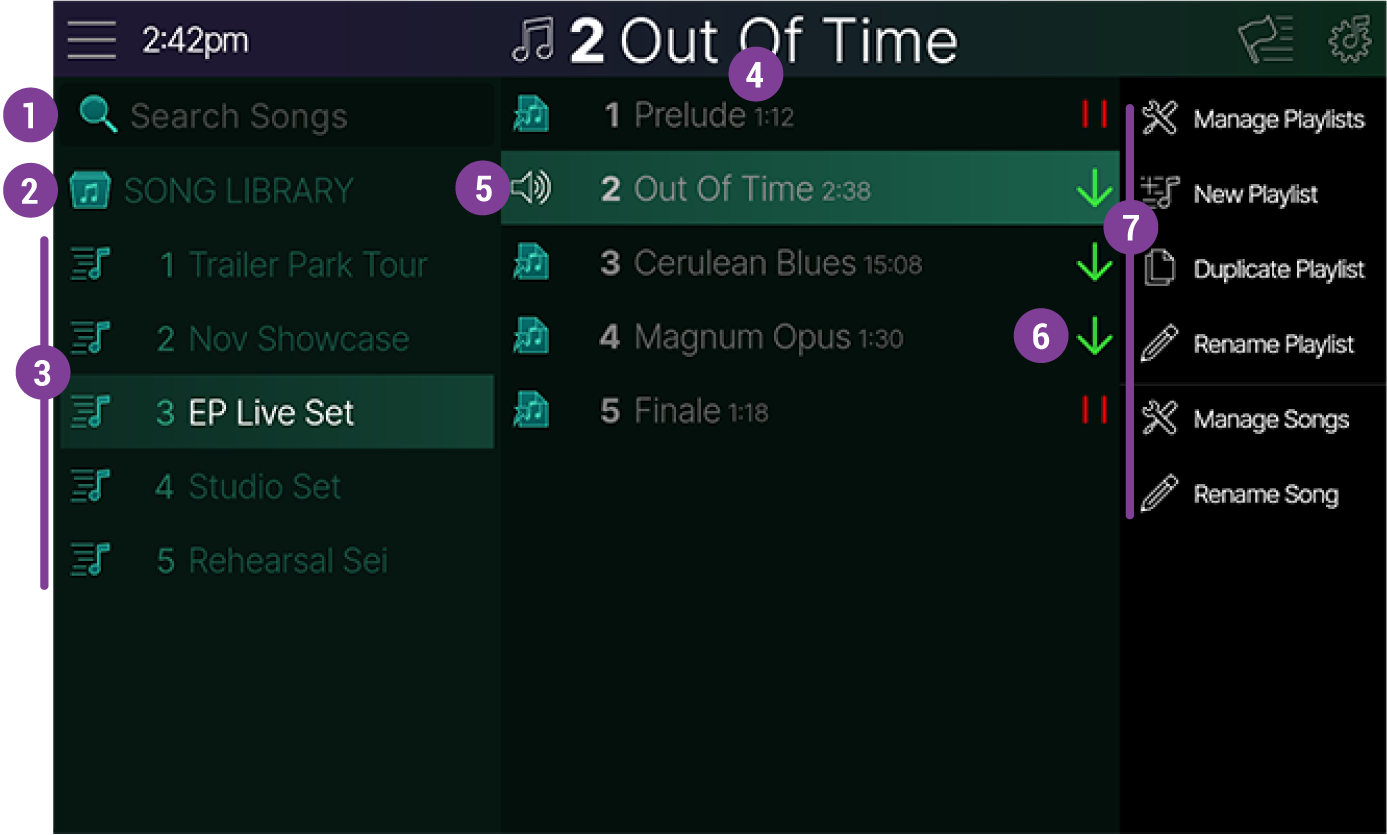
 Search Songs: Tap the Search Songs field and enter your search terms to filter the selected SONG LIBRARY folder or playlist songs listed in the center column.
 SONG LIBRARY Folder: This is your main folder, containing all your saved song files (up to 512, depending on song length, number of tracks, and the size of your microSD card).
 Playlists: Up to 127 playlists can be added to create collections of "aliases" of your original SONG LIBRARY files. Playlists are much like those in Spotify or Apple Music---they don't contain the song files themselves but instead "collect" songs in a certain order for playback. Up to 127 song aliases can be added to a playlist.
Important! Note that, once you edit and save changes to a Song (adding flags, editing flag parameters, changing tempo, etc.), those changes are reflected in all playlist instances of the song. Deleting a song from the SONG LIBRARY folder will remove all alias instances of the song from playlists. However, clearing songs from a playlist will not delete the original reference song file from the SONG LIBRARY folder.
 Song Column: All songs within the selected SONG LIBRARY or playlist folder appear in this column.
-
Swipe up and down to scroll, and tap a song once to cue it.
-
Double-tap a song in the Song List to load it and exit to the main Song screen. If the previous song was already playing, the new song starts playback on load; if playback was not active, the new song loads but does not start playing automatically.
 Current Song Indicator: The currently loaded song displays a white speaker icon
  .
.
 End of Song: Tap a song's End of Song icon to the right of the song name, and the End of Song panel appears. The selected action determines the behavior when playback reaches the end of the current song, as described below.
Note: Changing the End of Song action is the same as setting the End of Song parameter for the song's End Flag. This icon also appears in the End Flag's inspector header.
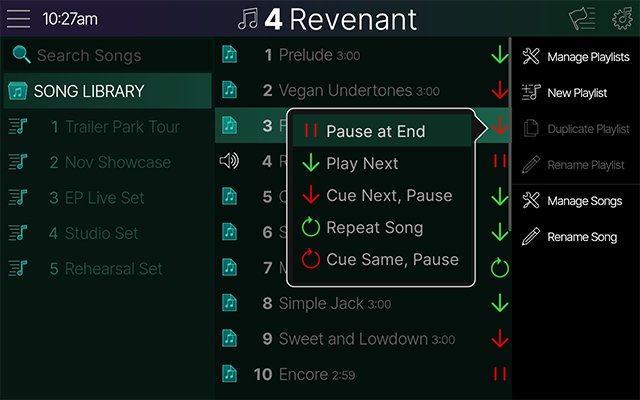
-
 Pause (default): The song pauses at the end and does nothing, maintaining the current preset or snapshot. Pressing Play then loads the next song's assigned preset/snapshot or any other flags at the very beginning of the timeline (if any) and immediately starts song playback.
 -
 Play Next: The next song (with any assigned preset/snapshot) starts automatically; if the last song is set to "Play Next," the playlist repeats, and Song 1 plays.^*^
 -
 Cue Next: Similar to Pause at End, except it preloads the next song's preset/snapshot or any other flags at the very beginning of the timeline (if any) and waits for a play command to start playback. If the last song is set to "Cue Next," the playlist repeats, and Song 1 is cued, awaiting a Play command.
 -
 Repeat: The current song automatically restarts from the beginning.
 -
 Cue Same: Returns to the beginning of the current song and preloads its initial preset/snapshot or any other flags at the beginning of the timeline (if any), but waits for a Play command to start playback.
^*^Important! Stadium won't nag you with pop-up dialogs constantly reminding you to save a song before loading another.Just remember always to save your current song to retain any edits you've made before another is loaded!
 Sidebar Options: Tap to perform the following functions for the selected song.
-
Manage Playlists: Tap to display the Manage Playlists screen, where you can select playlists to delete or rearrange them. See the following Managing Playlists section.
-
New Playlist: Tap to create a new playlist folder. Type in a name, tap
 , and the new, empty playlist is added at the bottom of the list in the left column.
 -
Duplicate Playlist: (Available when a playlist is selected.) Tap to select the desired playlist in the left column. Tap to duplicate the selected playlist, and a duplicate playlist is added, containing duplicate alias copies of all the original playlist's songs.
-
Manage Songs: Tap to display the Manage Songs screen, where you can select songs to copy to playlists, delete, or rearrange them. See the following Managing Songs section.
-
Rename Song: Tap to rename the current song.
Managing Playlists
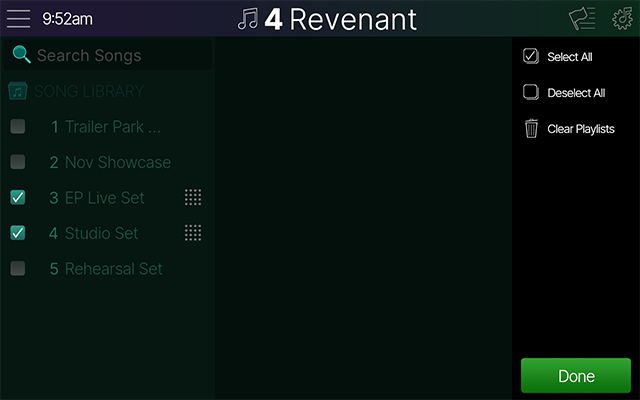
The Manage Playlists screen lets you reorder and clear playlists.
- From the Song List's sidebar, tap
 . You'll see a checkbox appear to the left of each Playlist, and a "drag" icon
  to the right.
-
To reorder playlists: Tap to "check" the checkbox of any playlist that you wish to move or clear. Tap
 or
or  to check/uncheck all playlists.
-
Tap any checked playlist's drag icon
 and drag up/down to move all checked playlists together.
 -
Tap the sidebar's
 to clear the checked playlists. Note that deleting a playlist's songs does not delete their original, referenced song files from the SONG LIBRARY folder.
-
-
Tap
 when complete.
Managing Songs
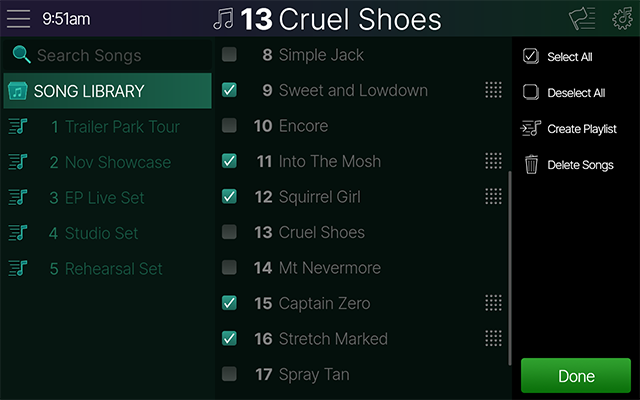
- From the sidebar, tap
 . You'll see checkboxes appear to select one or more songs and "drag" icons
  to the right, which allow the selected songs to be dragged to reorder or copy into playlists. Tap
  or
or  to check/uncheck all songs.
-
To add songs to a playlist: Tap to check the desired songs and drag any checked song's drag icon
 over to a playlist in the left column.
 -
To create a new playlist and add songs to it: Check all songs you wish to include, then tap
 . Enter a name for your new playlist and tap .
 -
To reorder or delete songs within the current song list: Check any song(s) you wish to move or clear.
-
Tap on any drag icon
and drag up/down to move all songs. -
Tap
 to delete the checked songs. Note that deleting songs from the SONG LIBRARY folder deletes all alias copies of the songs from all playlists. Deleting songs from a playlist folder does not delete their original, referenced song files from the SONG LIBRARY.
-
-
Tap
 when complete.