
64 KiB
version, language
| version | language |
|---|---|
| Rev D_v1.3 | en |
Global Settings
The Global Settings menu contains additional parameters that apply to all presets and songs, such as input and output levels, footswitch behavior, display brightness, etc.
-
Tap the Menu icon
 and then Global Settings
  . The Global Settings screen appears (below).
 -
Tap the desired submenu icon; its parameters appear in the inspector.
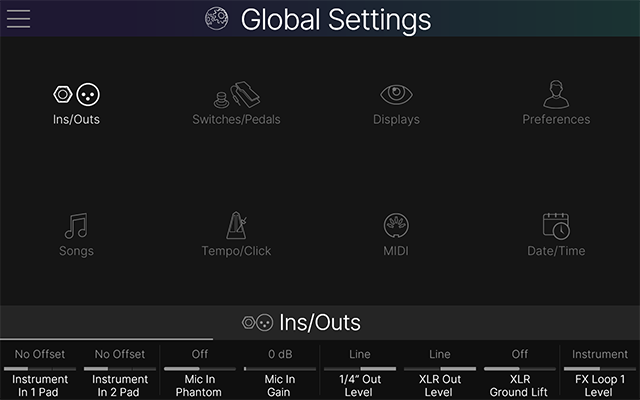 Global Settings
-
To view additional pages, press
 or
or  or swipe the parameters left or right.
 -
Not sure what a global setting does? Tap the setting to open the Parameter Panel, which provides a description:
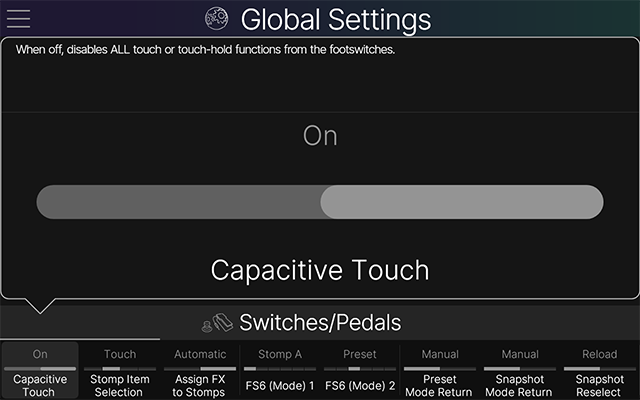 Global Settings > Parameter Panel
 Global Settings > Ins/Outs
Click to show/hide Global Settings > Ins/Outs settings...
| Parameter | Description |
|---|---|
| Inst [X] Pad | Sets the Instrument input level. * No Offset: Choose this if you want to set the Pad on/off setting per preset, from the Input > Instrument > Pad parameter. * Off/Inst: The input is set to Instrument level. * On/Line: The input is set to Line level. If your guitar or bass has active or high-output pickups, you may want to choose On/Line to avoid input clipping. Otherwise, just use what sounds best. |
| Mic In Phantom | When set to On, 48V phantom power is provided via the XLR Mic In jack for studio condenser microphones. IMPORTANT! Never plug or unplug a mic or XLR cable while phantom power is On. Leave this setting Off unless you're sure your connected mic requires phantom power. Please refer to your microphone manufacturer's documentation. |
| Mic In Gain | Controls the preamp gain for the XLR Mic input. Note that the Mic's input signal can be further adjusted up or down from the Input > Mic block's Trim parameter. |
| 1/4" Out Level | Choose Instrument when connecting the 1/4" outputs to stompboxes or the front of guitar or bass amps. Choose Line when connecting to studio monitors or the line inputs on mixers. |
| XLR Out Level | Choose Mic when connecting the XLR outputs to the XLR mic inputs on mixers. Choose Line when connecting to mixers, studio monitors, or audio interfaces. |
| XLR Ground Lift | When On , lifts the ground pin on the XLR outputs. This may help in reducing ground loops in certain situations. |
| FX Loop [X] Level | Choose Instrument when using a Send/Return pair as an FX loop for external stomp boxes. Choose Line when connecting external rack processors, keyboards, drum machines, mixers, or other line level gear. Note that FX Loop levels can be further adjusted via an FX Loop block's Send and Return parameters. |
| Return [X/X] Type | Determines the behavior of the Return 1 and 2 (Return 3 and 4 on Stadium XL  ) jacks: * Return 1/2 (Return 3/4 on Stadium XL ): The jacks are used for Return and FX Loop blocks. In this case, the Aux In channel on the Matrix Mixer is grayed out and unavailable. * Aux In: The Return 1/2 (Return 3/4 on Stadium XL ) jacks act as an always-on stereo Aux input (no processing) for monitoring the FOH or jamming along with mixers, media players, etc. In this case, the Aux In channel on the Matrix Mixer is active, but the equivalent FX Loop and Return blocks will be unavailable. ) jacks: * Return 1/2 (Return 3/4 on Stadium XL ): The jacks are used for Return and FX Loop blocks. In this case, the Aux In channel on the Matrix Mixer is grayed out and unavailable. * Aux In: The Return 1/2 (Return 3/4 on Stadium XL ) jacks act as an always-on stereo Aux input (no processing) for monitoring the FOH or jamming along with mixers, media players, etc. In this case, the Aux In channel on the Matrix Mixer is active, but the equivalent FX Loop and Return blocks will be unavailable. |
| Re-amp Src Out USB 7 | Determines which two physical inputs are sent dry (unprocessed) to your DAW software. USB Out 7 and 8 are dedicated to recording a DI signal, which can then be used with plug-ins or for Re-amping back through Helix Stadium. |
| Re-amp Src Out USB 8 | Determines which two physical inputs are sent dry (unprocessed) to your DAW software. USB Out 7 and 8 are dedicated to recording a DI signal, which can then be used with plug-ins or for Re-amping back through Helix Stadium. |
| USB Out 1/2 | Determines where the USB Out 1/2 signal is sourced from: * Direct Out: USB Out 1/2 appears as a routable output destination from the Home > Edit screen and appears in the Output list. * Matrix 1/4": USB Out 1/2 echoes the Matrix 1/4" layer. USB 1/2 is grayed out and unavailable in the Output list. * Matrix XLR: USB Out 1/2 echoes the Matrix XLR layer. USB 1/2 is grayed out and unavailable in the Output list. * Matrix Phones: USB Out 1/2 echoes the Matrix Phones layer. USB 1/2 is grayed out and unavailable in the Output list. |
| S/PDIF Out | Determines where the S/PDIF Out signal is sourced from: * Direct Out: S/PDIF appears as a routable output destination from the Home > Edit screen and appears in the Output list. * Matrix 1/4": S/PDIF Out echoes the Matrix 1/4" layer. * Matrix XLR: S/PDIF Out echoes the Matrix XLR layer. * Matrix Phones: S/PDIF Out echoes the Matrix Phones layer. |
| S/PDIF Out Level | Sets the S/PDIF output level. For most cases, you can leave this set to 0.0dB. |
| S/PDIF Sample Rate | Selects the sample rate for the S/PDIF output. When connecting to another S/PDIF device, ensure both units are set to the same sample rate. Note that this setting does not affect USB audio. |
 Global Settings > Switches/Pedals
Click to show/hide Global Settings > Switches/Pedals settings...
| Parameter | Description |
|---|---|
| Capacitive Touch | When off, disables alltouch or touch-hold functions from the footswitches. |
| Stomp Item Selection | Determines whether touching, pressing, or both touching and pressing a Stomp mode footswitch selects the assigned focused block or jumps to the Bypass/Control Assign or Command Center page. |
| Assign FX to Stomps | Determines whether or not Helix Stadium automatically assigns a new effect block to the earliest empty Stomp Mode footswitch location. Amp, Preamp, Power Amp, Cab, IR, Split, and Merge blocks are never auto-assigned. |
| FS6 (Mode) 1 | Determines which of the two footswitch modes FS6 toggles between, both of which appear on FS6 (MODE). Shortcut: While in More Mode, press and hold the desired mode select switch to swap out the current FS6 Mode 1 or Mode 2. |
| FS6 (Mode) 2 | Determines which of the two footswitch modes FS6 toggles between, both of which appear on FS6 (MODE). Shortcut: While in More Mode, press and hold the desired mode select switch to swap out the current FS6 Mode 1 or Mode 2. |
| Preset Mode Return | If FS6 (MODE) is set to toggle between Preset and another mode (Stomp A, Stomp B, Snapshot, Combo, or Transport), this parameter determines whether selecting a preset footswitch automatically toggles back to the other mode. This setting is locked to "Manual" if neither FS6 Mode 1 nor FS6 Mode 2 is set to "Preset." |
| Snapshot Mode Return | Determines whether selecting a snapshot switch stays in Snapshot mode ("Manual") or automatically returns to the previous mode ("Automatic"). |
| Snapshot Reselect | Determines whether pressing the active snapshot footswitch reloads the stored state of the snapshot ("Reload") or toggles between it and the previously selected snapshot ("Toggle Prev"). |
| Combo Top Row | Determines which functions appear on the top row (FS2~FS5) and bottom row (FS8~FS11) in Combo Footswitch mode. (Transport switches cannot be assigned to Combo mode.) |
| Combo Bottom Row | Determines which functions appear on the top row (FS2~FS5) and bottom row (FS8~FS11) in Combo Footswitch mode. (Transport switches cannot be assigned to Combo mode.) |
| Up/Down Switches | Determines whether FS1 and FS7 are Bank, Preset, Snapshot, Song, or Marker Up/Down. Up/Down switches appear in Preset, Snapshot, and Combo Footswitch modes only, and can be manually assigned to Stomp A and Stomp B switches via Command Center > Preset/Snapshot and Song commands. Shortcut: Press and hold FS1 and FS7 together to cycle through available Up/Down assignments. |
| Swap Up/Down | When On, swaps FS1 and FS7 for the Preset, Snapshot, and Combo Footswitch modes, so that Down is on the top and Up is on the bottom. |
| Flip EXP 1/2 Polarity | Stadium XL only. When On, the polarity of the onboard Expression Pedal behavior is reversed (for both EXP 1 and EXP 2 modes of the pedal), so heel and toe values are reversed. |
| EXP Pedal Position | Determines whether expression pedal positions are recalled per preset (and optionally per snapshot), or applied globally. If you want a Wah or Volume Pedal to maintain its current position when switching presets, set this to "Global." **Note:**When set to "Global," the current position persists on preset recall, even if Snapshot Control is currently active for the preset's pedal position parameter. |
| Control A (Tip) | Control C and D jacks are available on Stadium XL only. Determines whether each Control jack (A~D) is an expression pedal input, external footswitch input, external drum trigger input, or an external amp remote switch output. |
| Control B (Ring) | Control C and D jacks are available on Stadium XL only. Determines whether each Control jack (A~D) is an expression pedal input, external footswitch input, external drum trigger input, or an external amp remote switch output. |
| Control C (Tip) | Control C and D jacks are available on Stadium XL only. Determines whether each Control jack (A~D) is an expression pedal input, external footswitch input, external drum trigger input, or an external amp remote switch output. |
| Control D (Ring) | Control C and D jacks are available on Stadium XL only. Determines whether each Control jack (A~D) is an expression pedal input, external footswitch input, external drum trigger input, or an external amp remote switch output. |
| Flip A (Tip) Polarity | Control C and D jacks are available on Stadium XL only. When on, reverses the polarity of an expression pedal or footswitch received at the respective jack's tip or ring conductor. Reversing the polarity may be necessary for compatibility with certain third-party switch or expression pedals---please see the device manufacturer's documentation. |
| Flip B (Ring) Polarity | Control C and D jacks are available on Stadium XL only. When on, reverses the polarity of an expression pedal or footswitch received at the respective jack's tip or ring conductor. Reversing the polarity may be necessary for compatibility with certain third-party switch or expression pedals---please see the device manufacturer's documentation. |
| Flip C (Tip) Polarity | Control C and D jacks are available on Stadium XL only. When on, reverses the polarity of an expression pedal or footswitch received at the respective jack's tip or ring conductor. Reversing the polarity may be necessary for compatibility with certain third-party switch or expression pedals---please see the device manufacturer's documentation. |
| Flip D (Ring) Polarity | Control C and D jacks are available on Stadium XL only. When on, reverses the polarity of an expression pedal or footswitch received at the respective jack's tip or ring conductor. Reversing the polarity may be necessary for compatibility with certain third-party switch or expression pedals---please see the device manufacturer's documentation. |
| Trigger A Sensitivity | Control C and D jacks are available on Stadium XL only. Controls the sensitivity of a drum trigger connected to the respective jack's tip or ring conductor. Grayed out and unavailable unless Control A, B, C, or D is set to "Trigger In." |
| Trigger B Sensitivity | Control C and D jacks are available on Stadium XL only. Controls the sensitivity of a drum trigger connected to the respective jack's tip or ring conductor. Grayed out and unavailable unless Control A, B, C, or D is set to "Trigger In." |
| Trigger C Sensitivity | Control C and D jacks are available on Stadium XL only. Controls the sensitivity of a drum trigger connected to the respective jack's tip or ring conductor. Grayed out and unavailable unless Control A, B, C, or D is set to "Trigger In." |
| Trigger D Sensitivity | Control C and D jacks are available on Stadium XL only. Controls the sensitivity of a drum trigger connected to the respective jack's tip or ring conductor. Grayed out and unavailable unless Control A, B, C, or D is set to "Trigger In." |
| Trigger A Threshold | Control C and D jacks are available on Stadium XL only. Determines the minimum force required for a drum trigger connected to the respective jack's tip or ring conductor. Grayed out and unavailable unless Control A, B, C, or D is set to "Trigger In." |
| Trigger B Threshold | Control C and D jacks are available on Stadium XL only. Determines the minimum force required for a drum trigger connected to the respective jack's tip or ring conductor. Grayed out and unavailable unless Control A, B, C, or D is set to "Trigger In." |
| Trigger C Threshold* | Control C and D jacks are available on Stadium XL only. Determines the minimum force required for a drum trigger connected to the respective jack's tip or ring conductor. Grayed out and unavailable unless Control A, B, C, or D is set to "Trigger In." |
| Trigger D Threshold* | Control C and D jacks are available on Stadium XL only. Determines the minimum force required for a drum trigger connected to the respective jack's tip or ring conductor. Grayed out and unavailable unless Control A, B, C, or D is set to "Trigger In." |
 Global Settings > Displays
Click to show/hide Global Settings > Displays settings...
| Parameter | Description |
|---|---|
| Main LCD Brightness | Controls the brightness of the main display. |
| Scribble Strip Brightness | Stadium XL only. Controls the brightness of the scribble strip displays above the footswitches. Note that 0% is the lowest brightness available; there is no way to turn off the scribble strips completely. |
| Screen Dim Timeout | If no signal is present at the Instrument or Mic input, and a button press, footswitch press, expression pedal move, or screen tap has not been registered for a certain amount of time, both the main display (and scribble strips ) dim to maximize component life. |
| Dim LED Brightness | Sets the dim state brightness of all footswitch LEDs from 0% (completely unlit) to 50% (half the brightness of the bright lit state. If you prefer blocks to appear dim with dark switches instead of dim switches, set this to 0%. |
| Tap LED | If the TAP switch's constant tempo indication flashing annoys you, set this to "Off." |
 Global Settings > Preferences
Click to show/hide Global Settings > Preferences settings...
| Parameter | Description |
|---|---|
| Preset Numbering | Determines whether preset numbers appear as banks of four (A, B, C, D) or are numbered 0-127 (0-511 within the USER PRESETS folder) or 1-128 (1-512 within the USER PRESETS folder), which may be convenient when recalling presets via incoming MIDI program change messages. |
| Tap Tempo Pitch | Determines how delay repeats behave when repeatedly pressing the TAP footswitch. "Authentic" respects the natural pitch fluctuations inherent when changing a real delay device's time knob; "Transparent" minimizes these artifacts. |
| Allow Geolocation | When On, Helix Stadium automatically detects your time zone for Global Settings > Date/Time to set the correct time. (An active internet connection is required.) This information is not stored or shared with any third party. It is advised to use the correct local time and time zone when using your Line 6 account. |
| Remote Access | Determines whether Helix Stadium software application clients can connect ("Allow" or "Deny") for remote control/file transfers, or if a security PIN is required to connect to this Helix Stadium device ("Require PIN"). You must set a 4-digit PIN to enable the Require PIN security feature---see the next setting. |
| Set PIN | Only available if Remote Access is set to "Require PIN." Tap the Set PIN button, enter your desired 4-digit PIN in the dialog, and tap  . Repeat these steps if you wish to change the PIN. When Remote Access is set to "Require PIN" and you've created your 4-digit PIN, you will be prompted to enter this PIN in the Helix Stadium application when connecting to this device for greater security. See Helix Stadium Application > Connect to Helix Stadium. . Repeat these steps if you wish to change the PIN. When Remote Access is set to "Require PIN" and you've created your 4-digit PIN, you will be prompted to enter this PIN in the Helix Stadium application when connecting to this device for greater security. See Helix Stadium Application > Connect to Helix Stadium. |
 Global Settings > Songs
Click to show/hide Global Settings > Songs settings...
The Songs category includes Global Settings that apply to Helix Stadium's Song View - Song selection and Marker options. See Performing Songs for more information.
| Parameter | Description |
|---|---|
| Select Song | Determines what happens when selecting songs by pressing the next or previous song transport buttons. * Skip: Instantly skips the current song and loads the next or previous song; if playback is currently active, the next/previous song automatically plays. * Cue: (The default setting.) Selects a song but does not load it ; when the current song ends, the cued song loads and plays. Alternatively, press PLAY to load and play the cued song instantly. (Also see Song Play below for other options when pressing PLAY for the cued song.) |
| Select Marker | Determines what happens when selecting markers by pressing the next or previous marker transport buttons. * Skip: Skips to the selected marker immediately; if playback is currently active, it starts from the next/previous marker. * Cue: (The default setting.) Sets the selected previous/next marker as cued but does not play it; press PLAY to jump to the cued marker instantly. * Next Marker: Causes playback to jump to the selected marker once the current playback reaches the next marker (or song end). This lets you rearrange sections of your song on the fly. |
| Song Play | Determines the Song and Cue behaviors when engaging Play on a cued song (if Select Song is set to "Cue" - see above) or selecting a song (if Select Song is set to "Skip"), by: * Pressing the Play button * Stepping on the Transport > Play switch * Pressing the FS12 (Play) switch * Tapping the Transport Panel play icon * On receiving MIDI CC Transport commands Play: Song playback starts instantly and recalls any preset/snapshot if enabled on the song's Start flag. Load: The song is loaded, but does not start playback or load any preset/snapshot recalled if enabled on the song's Start flag. Load+Preset: The song is loaded without playback starting and recalls any preset/snapshot if enabled on the song's Start flag. |
| Looper Stops with Song | Off: The song transport controls do not affect the Looper state or any Looper flags. On: Stopping/Pausing the song or playing a different song (but not cueing a different song!) stops the Looper. Note: This parameter only applies to Looper flags added to songs; manual looper control (e.g., pressing looper switches) is not affected by this setting. |
 Global Settings > Tempo/Click
Tip: You can also quickly access Tempo/Click settings by briefly touching the TAP/Tuner switch. Click to show/hide Global Settings > Tempo/Click settings...
| Parameter | Description |
|---|---|
| Click | Turns the Click (metronome) on and off. |
| Play Click | Determines when the Click (metronome) is heard. * Song Playbk: The click (when on) is only heard during song playback. * Always: The click (when on) is always heard. |
| Click Sound | Selects the type of Click sound. |
| Count In Sound* | Selects the type of sound used for the Count In, which is heard before the start of a song and/or marker, when enabled for the song. |
| Follow Song Tempo | Determines if and when time-based blocks (like Delays and Mods) follow the current song's tempo. * Never: Time-based blocks completely ignore song tempo. * Song Playbk: Time-based blocks only follow the current song tempo while the song is playing. * Always: Time-based blocks always follow the current song tempo, even when the song is not playing. |
| Tempo Select | Determines whether the system tempo is stored and recalled with each snapshot, recalled with each preset, or applied globally across all presets and snapshots. |
| BPM [Whole] | Sets the system tempo. Turning Knob 7 (BPM [Whole]) resets Knob 8 (BPM [Hundredths]) to .00. |
| BPM [Hundredths] | Sets the system tempo. Turning Knob 7 (BPM [Whole]) resets Knob 8 (BPM [Hundredths]) to .00. |
| Receive MIDI Clock | Determines whether Stadium responds to the incoming MIDI Clock received at its MIDI IN port, via USB, or whichever it senses first ("Auto"). If you want Stadium to completely ignore MIDI clock, set this to "Off." The TAP switch LED flashes blue when synced to incoming MIDI Clock. |
| Send MIDI Clock | Determines from which outputs (if any) Helix Stadium transmits MIDI Clock. |
^*^Note: The Song View > Count In feature is still in development and will be available in a future firmware update for Helix Stadium. For the latest details, please visit the Line 6 website's Helix Stadium product page.
 Global Settings > MIDI
See MIDI for additional information. Click to show/hide Global Settings > MIDI settings...
| Parameter | Description |
|---|---|
| MIDI Over USB C | Determines whether Helix Stadium receives and transmits MIDI commands over its USB-C port. |
| MIDI THRU | When on, data received at the MIDI In port (or USB-C, if MIDI Over USB C is on) is echoed out the MIDI OUT/THRU port. |
| Global MIDI Channel | Sets the MIDI channel for which Helix Stadium transmits and responds for its global functions, like preset recall, snapshot recall, and Global CCs. See Global CCs. |
| Bypass/Ctrl MIDI Channel | Sets the MIDI Channel for the assignment of block bypass and parameter control. This setting must always be a different channel than the one used for Global MIDI remote functions. |
| Receive MIDI PC | Determines whether Helix Stadium receives and responds to MIDI program change (PC) messages to recall presets. **Note:**The USB A port does not currently support MIDI In or Out. Please use the USB-C port for USB MIDI. |
| Send MIDI PC | Determines if Helix Stadium sends MIDI Bank/Program Change (PC) messages for its preset changes and to which MIDI outputs. The PC value for each preset appears at the bottom of the Preset List's sidebar. Note: This setting only affects the MIDI Bank/Program Change messages sent as a result of Stadium preset changes. It does not affect Command Center or Song View - MIDI Flag Bank/Program Change messages, which are always sent on both MIDI Out and USB MIDI. |
| Duplicate Send PC | Determines whether Helix Stadium automatically sends duplicate MIDI program change (PC) messages. For example, if set to Off and a PC message of 47 is sent, any subsequent PC 47 message is not sent to avoid duplicate messages. |
| Send Snapshot CC | Determines whether Helix Stadium automatically sends matching MIDI Snapshot CC messages (CC69, values 0~9) when selecting snapshots. |
 Global Settings > Date/Time
Tip: You can also quickly access the Date/Time settings by tapping Set Date/Time from the clock panel's sidebar. Click to show/hide Global Settings > Date/Time settings...
| Parameter | Description |
|---|---|
| Date/Time Via Wi-Fi | When on, Helix Stadium utilizes the Network Time Protocol (NTP) to synchronize the date and time with the selected time zone. |
| Time Zone | Select the city in your time zone. Geography is your friend, and maps are cool. |
| Year | Lets you manually set the date and time. Grayed out when Date/Time Via Wi-Fi is on. |
| Month | Lets you manually set the date and time. Grayed out when Date/Time Via Wi-Fi is on. |
| Day | Lets you manually set the date and time. Grayed out when Date/Time Via Wi-Fi is on. |
| Hour | Lets you manually set the date and time. Grayed out when Date/Time Via Wi-Fi is on. |
| Minute | Lets you manually set the date and time. Grayed out when Date/Time Via Wi-Fi is on. |
| AM/PM | Grayed out when 24-hour Clock is set to "On." |
| 24-hour Clock | Determines whether the clock uses the AM/PM (Off) or 24-hour clock format. |
| Hide Clock | When set to "On," the Clock and Stopwatch displays are hidden. |